production
The Production module enables you to track the work in progress that you tag within your establishment. Your objects will be tracked in the zones you configure when setting up the software, using the active BLE display tag (More about tags)
Active tags emit a signal every 5 seconds, which is picked up by Bluetooth receivers before being sent to the SIGSCAN server.
SIGSCAN is based on the association of virtual objects (stocks) with your real objects thanks to the identifiers of the tags (MAC address) on your equipment.
You'll then be able to find the list of your objects (outstandings) with their positions and locations on your plans in the web interface. Thanks to the mobile application, you can easily associate and disassociate objects in the field.
WEB Interface
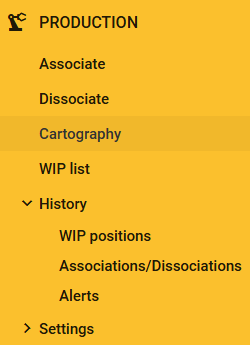
The SIGSCAN Industry Production module WEB interface can be accessed from the menu on the left, which includes 2 shortcuts for associating and dissociating tags, 2 pages covering the various functions and a sub-menu for the history of positions and alerts.
Navigation
Associating and dissociating are shortcuts to simplify and speed up an essential operation in the production module. Click on them to bring up an association or dissociation pop-up. You can associate your receivables from the list of receivables or the receivable details.
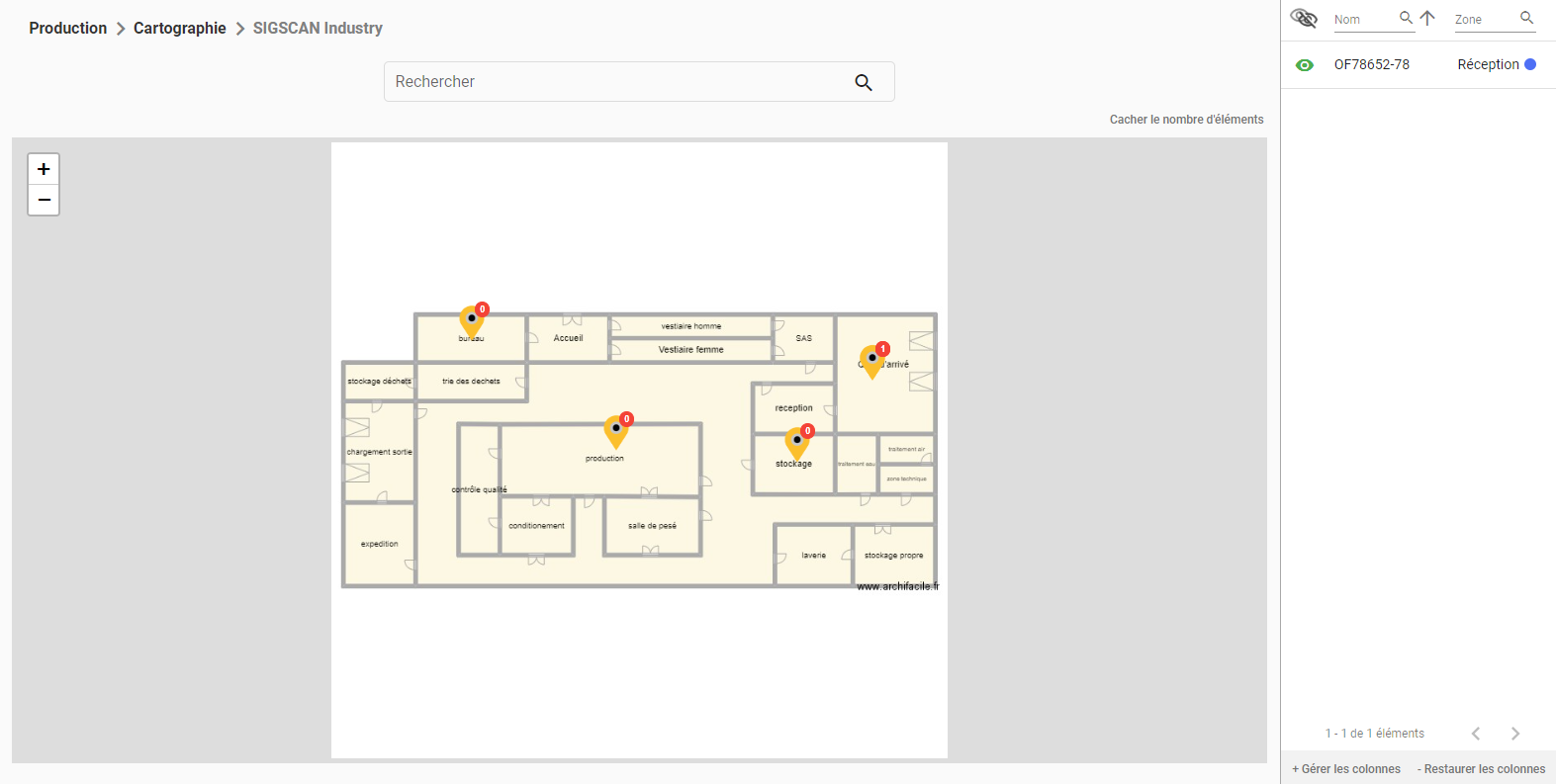
Mapping is designed to show you the positions of your receivables according to their zones on your maps.
To search for an asset, you can use the search bar or the right-hand column.
To use the map, click on the pointers that appear. Depending on the architecture of your plans in SIGSCAN, you will have more or less depth..
You can view the number of tools present per layout by clicking on the icon at the top right of the layout.
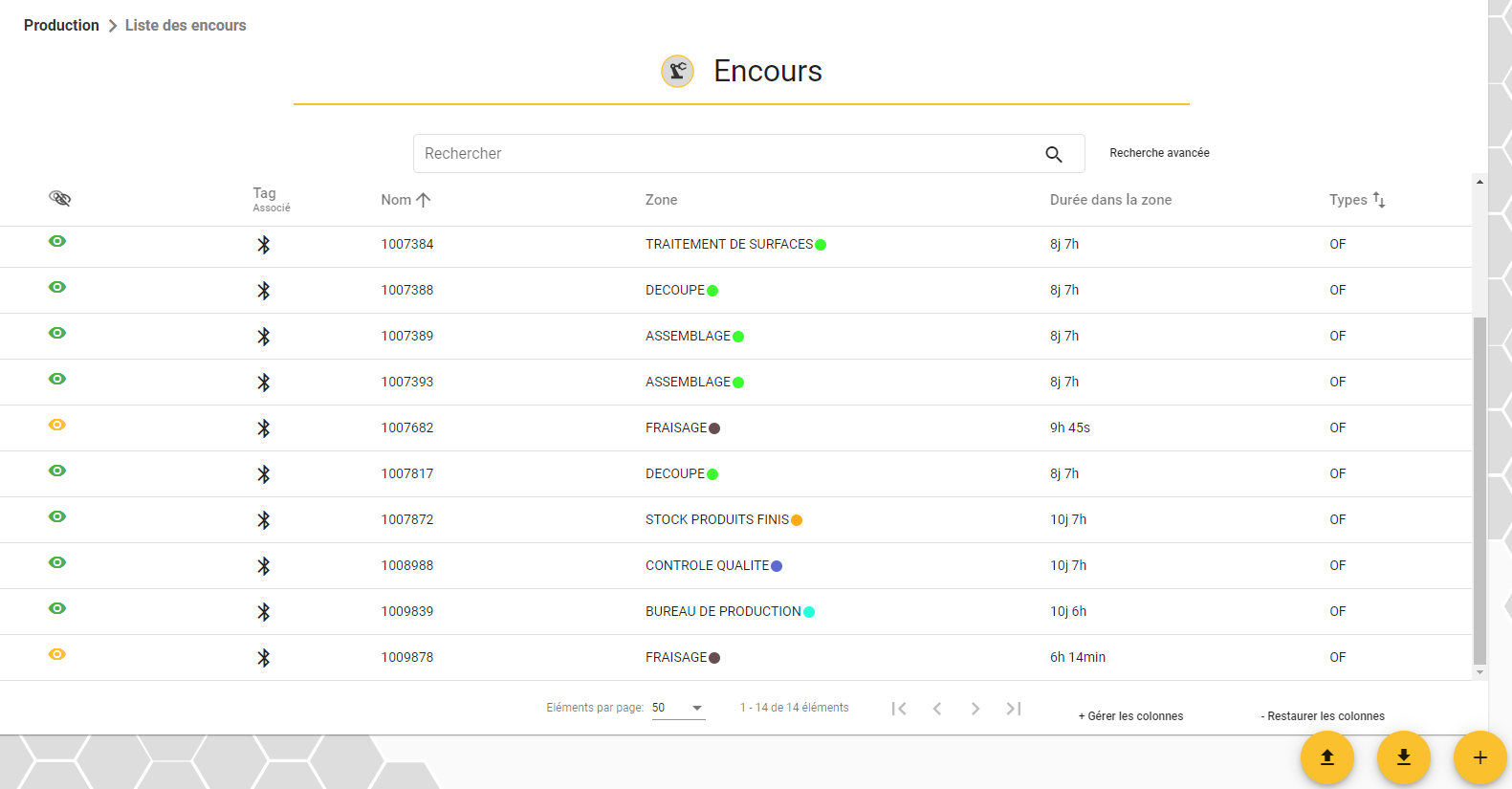
The WIP list lets you view all the outstandings created in your organisation. You can sort/filter them and combine or separate them.
The central search bar allows you to search by :
The name of the WO
Tag name
The zone
Type
Zone category
Configurable fields
To activate the filters, click on the column headings (Eye, Associated, Name, Tag, Zone, Duration in zone, Type (default)).
You can also make configurable fields visible directly in the list, by clicking on Column management at the bottom right of the table and adding or deleting the desired fields.
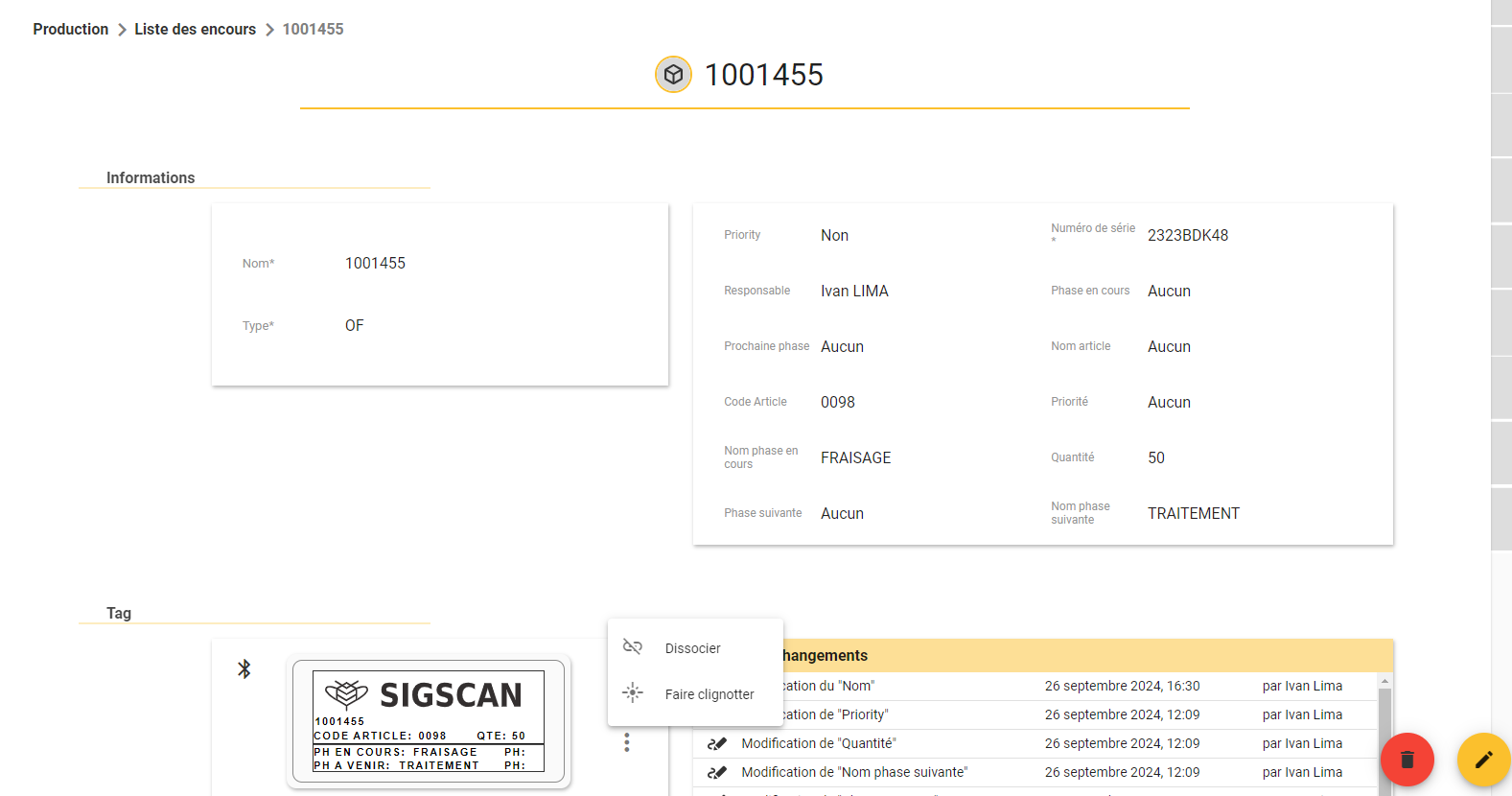
Enter the details of the objects: click on an item, and the details of the item group together the information about your object and the tag associated with it.
You can view the object's basic information: Name, Type, Configurable fields and associated tag.
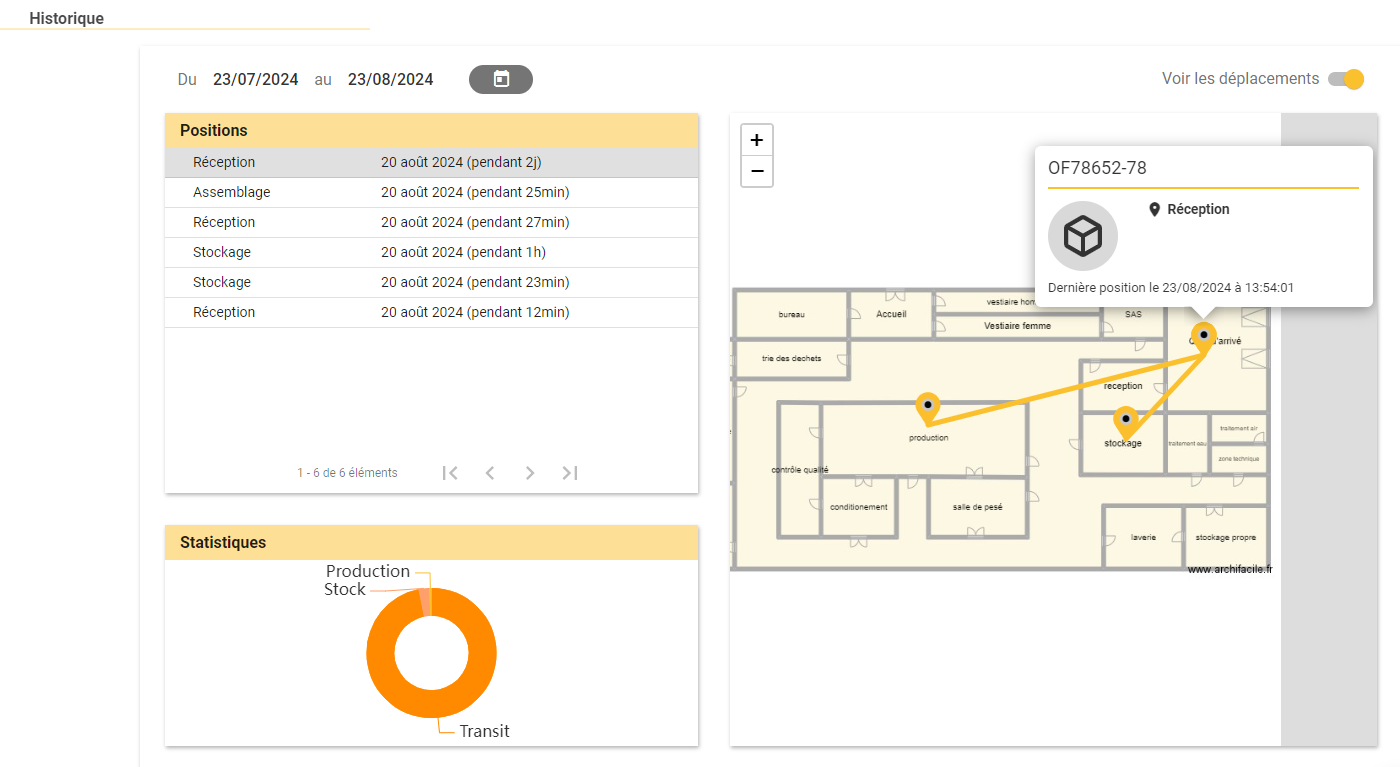
You'll also find additional information: position history, category of zone visited and a graphical representation of your vessel's movements (you can activate a spaghetti diagram by ticking the ‘see movements’ box).
The history tab allows you to view all the positions that have been recorded in SIGSCAN, the history of associations and dissociations and the list of notifications of your module alerts. In the WO positions section, you will only see positions associated with outstanding amounts. You can perform a search or filter using the advanced search (click to the right of the search to activate) or by clicking directly on the column icons. You can also add columns by clicking on the icon at the bottom right of the list.
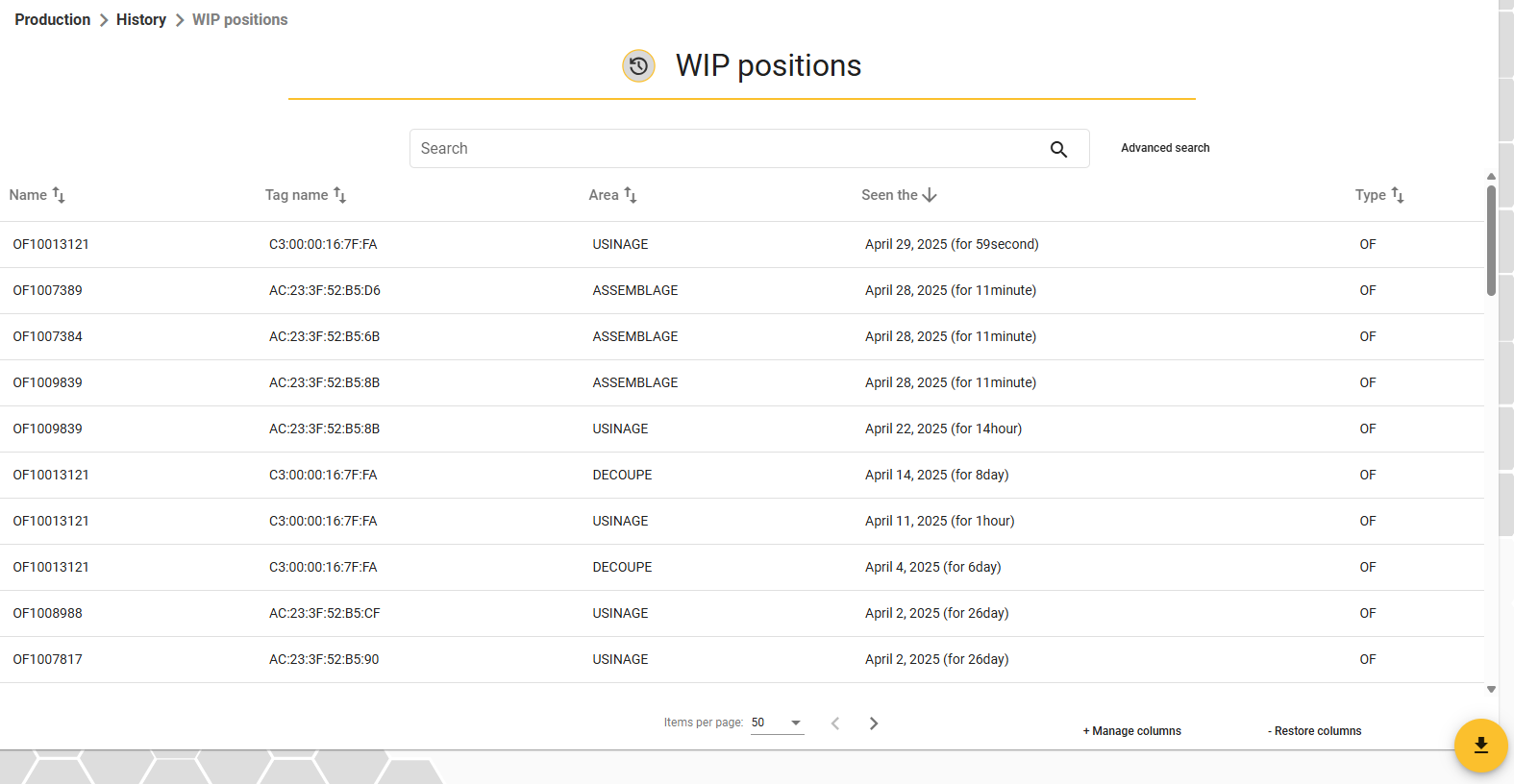
You can extract the history of outstanding positions by clicking on the import button at the bottom right of your screen. The filter applied will be taken into account when you export.
You will also find the history of associations (start of SIGSCAN monitoring) and dissociations (end of SIGSCAN monitoring).
View the list of notifications for alerts you have set up on your outstandings.
Adding and managing WIP
To identify and track your receivables with SIGSCAN, you need to create them in SIGSCAN. This will enable you to associate a tag with an outstanding debt and, by following the tag, track the outstanding debt.
Go to the list of outstandings (WO).
Add a WIP
Go to the item/WO list  at the bottom right of the page.
Give your a name and assign a type to the item/WO (the types are defined when the module is configured). Depending on the type you assign to your receivable, you will have to fill in additional fields.
Once you have filled in all the information, remember to confirm.  lower right.
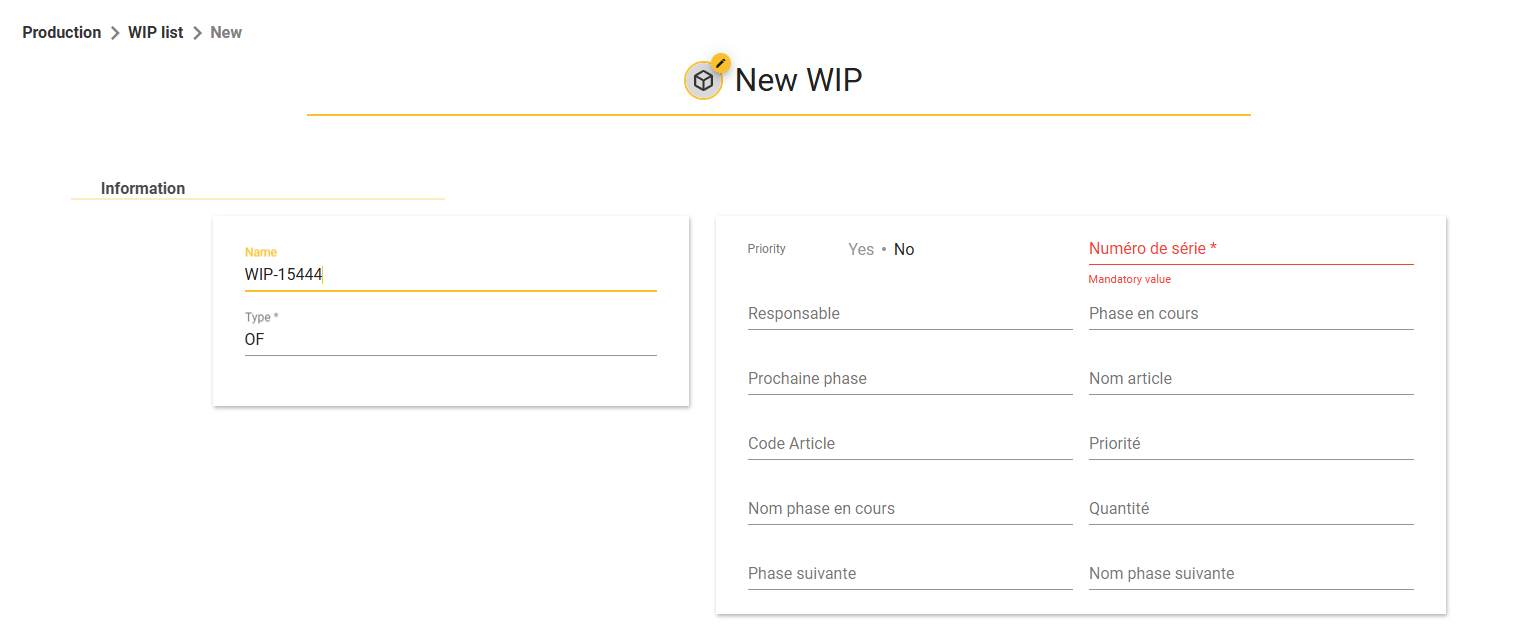
Managing WIP
Item management can be managed by modifying the various fields of the item, its name or its type.
Enter the details of an outstanding debt and click on  at the bottom right of your screen, change the information you want and confirm your changes by clicking on at the bottom right of your screen.
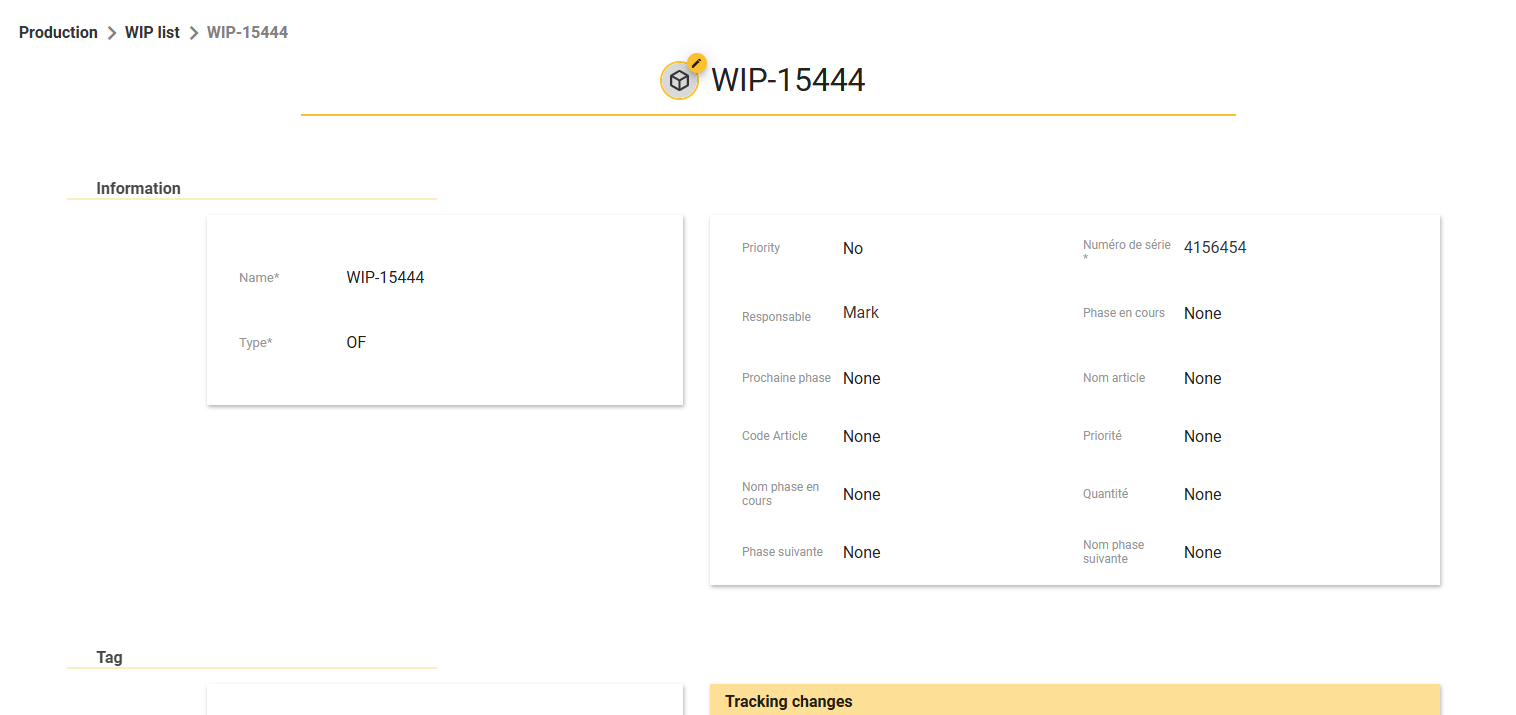
Associating and dissociating WIP with active tags (BLE)
The main actions to be carried out when using SIGSCAN are to associate and dissociate outstandings.
BLE Association from the web
Enter the name of the tag you wish to associate (by default, tag names are the MAC address present on the tag).
You can also use the shortcuts in the left-hand menu.
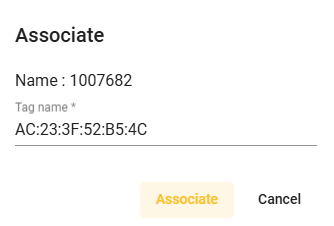
Alerts on your WIP
SIGSCAN software allows you to set up alerts to monitor your work in progress and be informed of any situation of your choice.
Set a new alert
To set up an alert for an work in progress, go to the list of your alerts in the Alerts page of the tools module settings.
This page lists the alerts you have set up. To create a new alert, click on at the bottom right of the page.
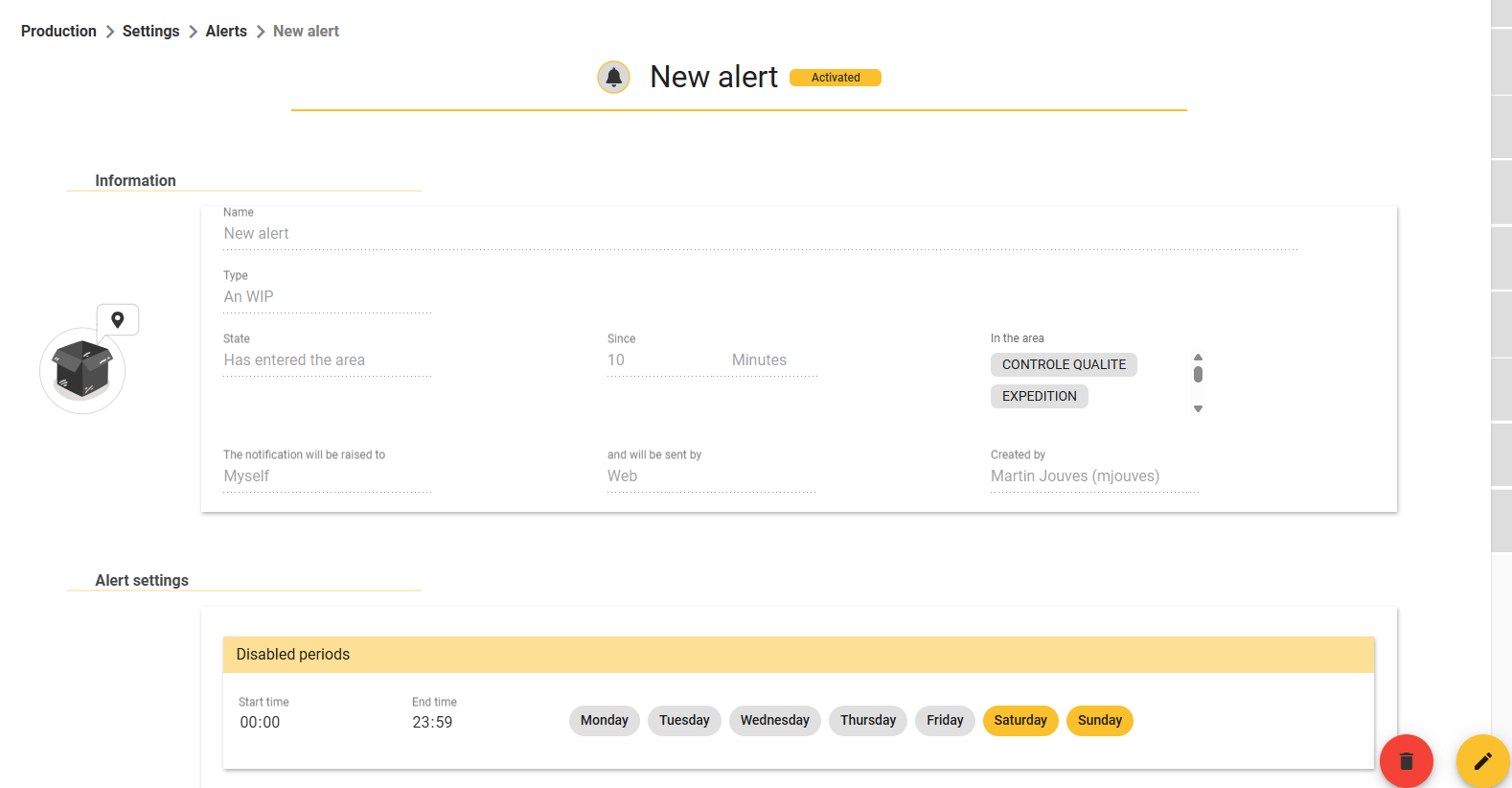
On the alert configuration page, you have to fill in 4 mandatory sections: the name, the work in progress affected, the status that triggers the alert, and the destination of the alert.
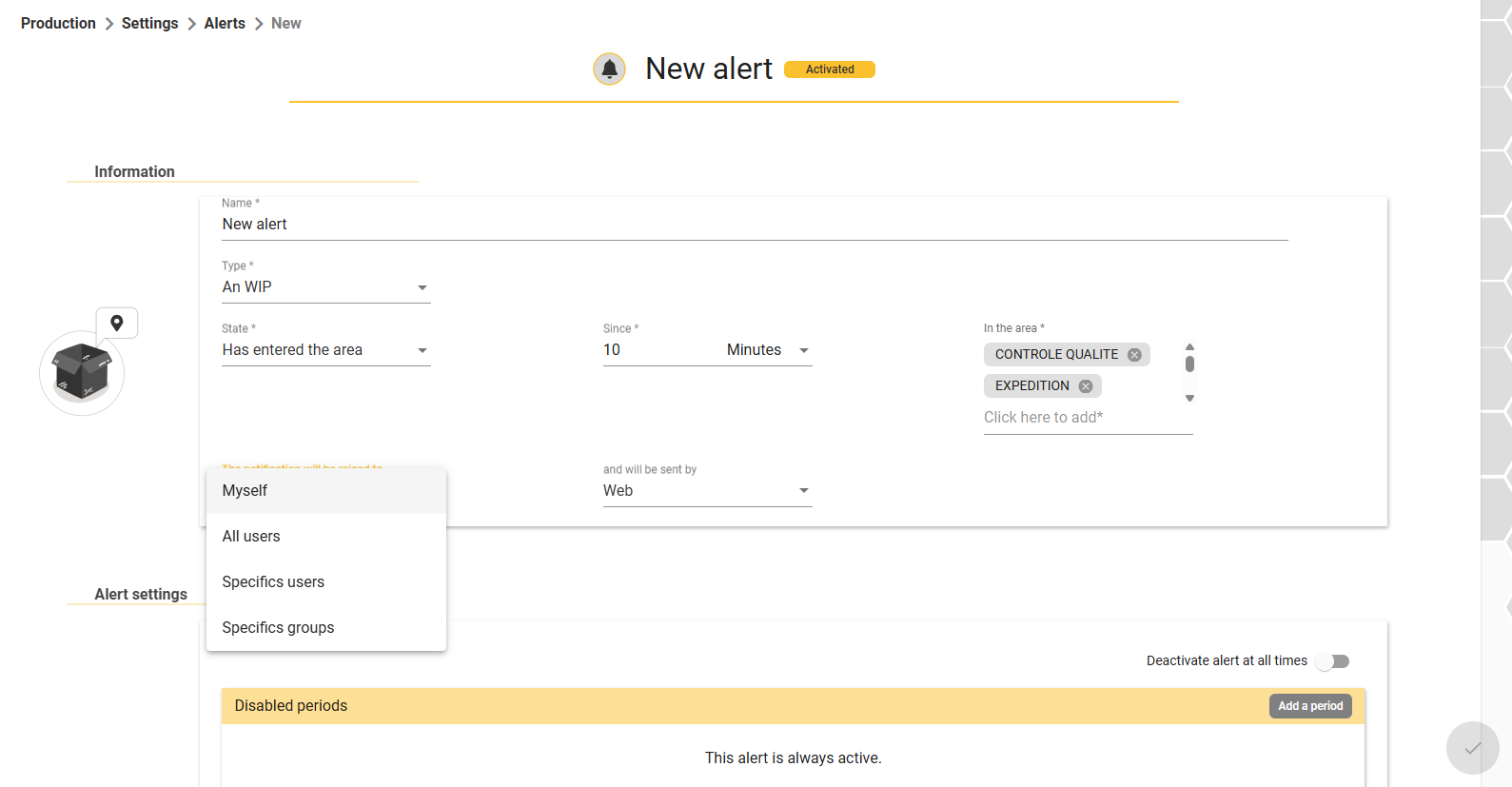
Description of the different types and states :
Type :
An work in progress : Your alert will relate to all your work in progress
The work in progress : Your alert will relate to the work in progress identified
The typeof work in progress : Your alert will relate to all exposures of this type
Customised work in progress field : Your alert will relate to all outstandings containing the value indicated in the selected configurable field.
State :
Entered the zone : The WIP has entered the identified zone
Has left the zone : The WIP has left the identified zone
Will see its compliance expire on : The WIP has reached its compliance date on X defined in a configurable field in the object :
Is equal to = today (Date of configurable field)
Is less than = In X days (to be defined), depending on the value of the configurable field
Is greater than = Since X days (to be defined), depending on the value of the configurable field
Low voltage : The tag associated with the work in progress is discharged (we advise you to configure a battery alert on all your tags (see Hardware alert management). (see Managing equipment alerts)
Choose who your alert will be sent to and how (default notification, option to send an email)
You can also define programmed deactivation periods for your alert or deactivate it manually.
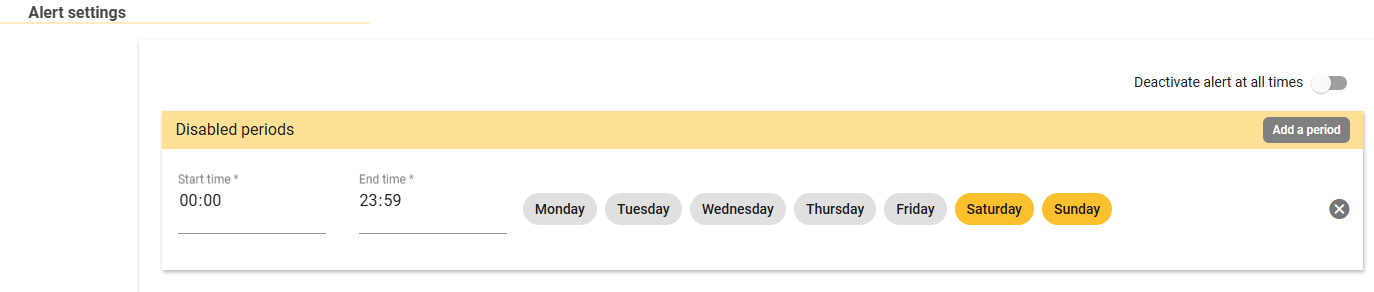
Modifier les paramètres d’une alerte
To change the settings for an alert, select the alert you want and click on at the bottom right of the screen.
All fields can be modified, once you have validated the changes in the bottom right-hand corner.
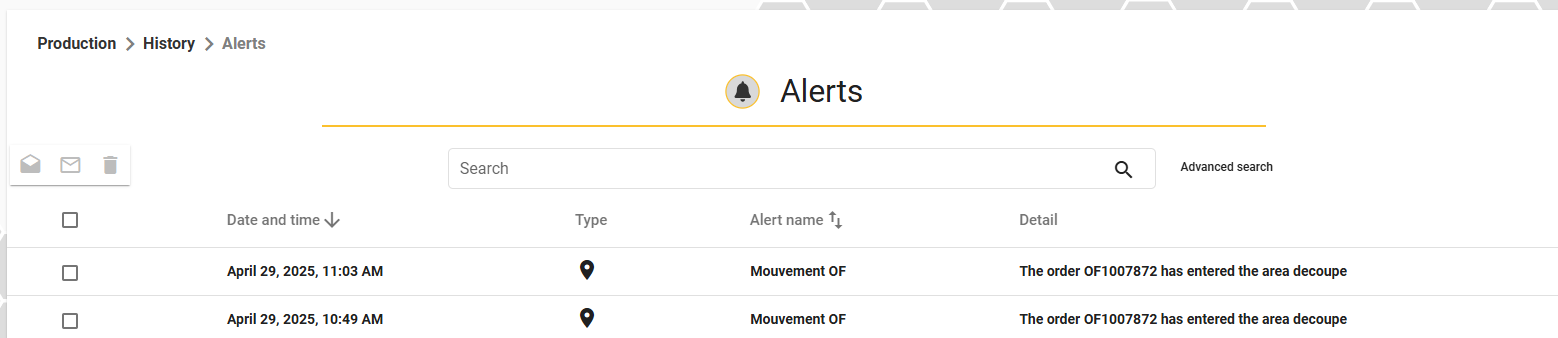
View alerts
All the fields can be modified, once the modifications have been completed validate them at the bottom right. ou can access the list of notifications of alerts on your work in progress from the history sub-menu of the Production module, where you will find all your alerts on your work in progress in the form of a list, you can search and filter among the alerts, to make the notifications disappear, tick the alerts read and modify their status with the following icons  .
.
Mobile App
The SIGSCAN Industry mobile application is available on the mobile terminals supplied with the solution, which are equipped with an RFID reader and a barcode scanner.
Its use is recommended for material searches and tag association/dissociation.
NAvigating on mobile app
Before carrying out any operations in the application, check that you are in the right module. Return to the module selection page using the back arrow on the mobile terminal at the bottom left and make sure you are in the production module.
The navigation menu gives you direct access to the following 4 functions :
Associate a tag with a work in progress
Searching for and modifying work in progress (list of objects)
Declare the position of an asset/work in progress
Unlink a tag from an asset/work in progress
associate tag
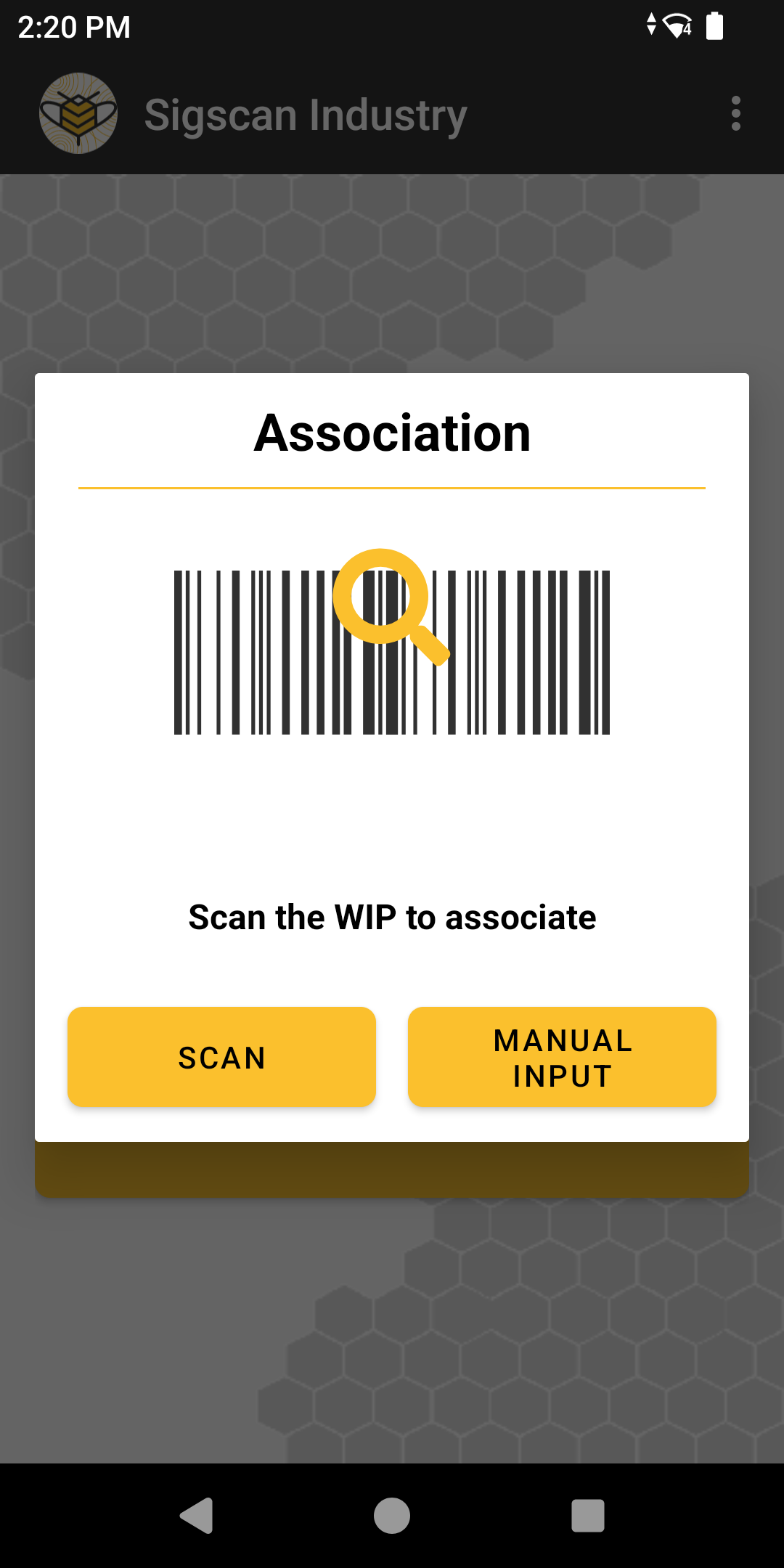
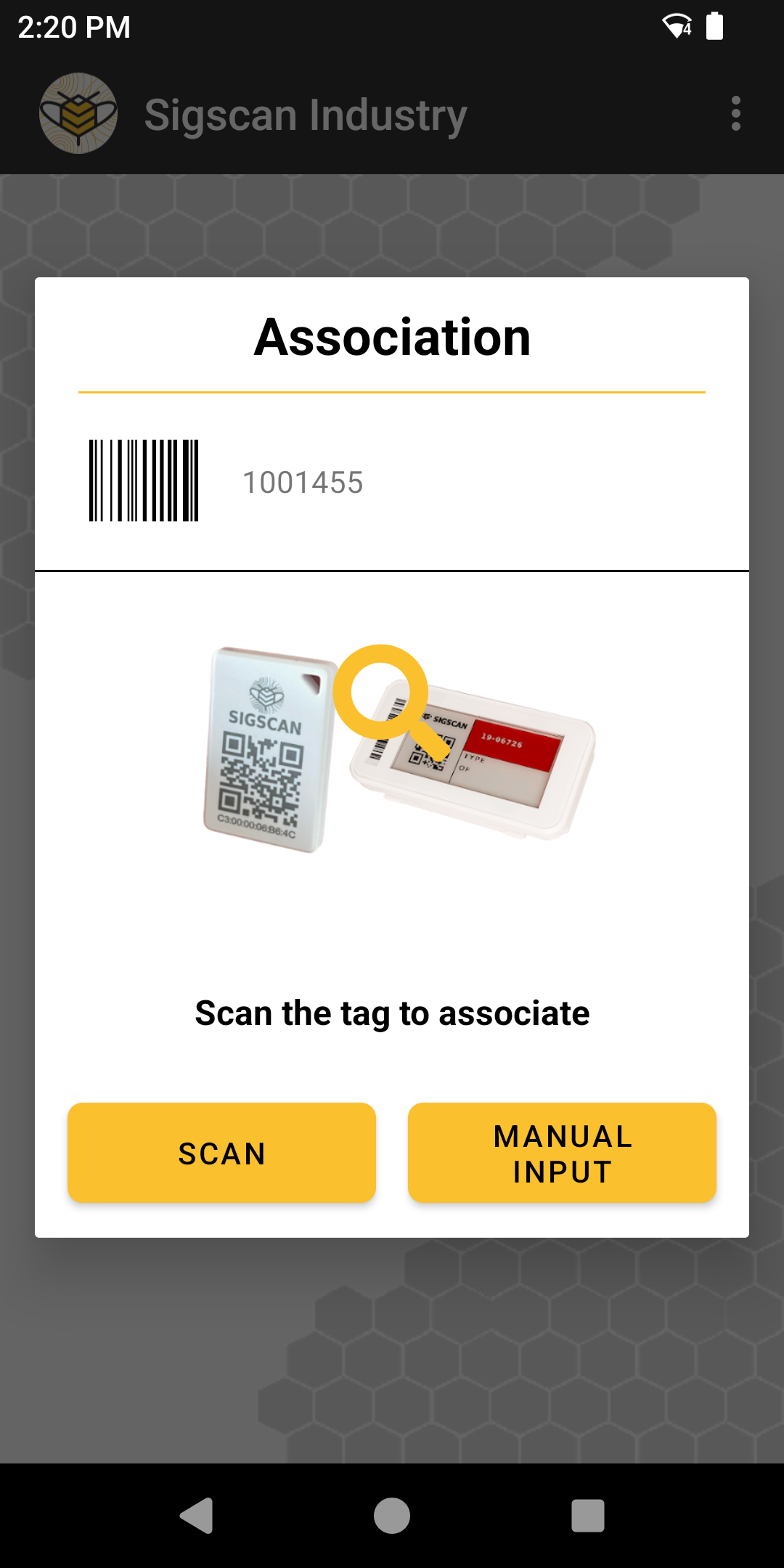
The mobile application lets you associate your tags with stocks created in SIGSCAN, click on associate a tag.
This procedure applies to active display tags (BLE)
The association process starts by selecting the work in progress in SIGSCAN that you wish to associate, click on manual entry to search through your list of work in progress (by default SIGSCAN only shows you work in progress that is not associated). You can also scan a bar code showing the name of the object in SIGSCAN if it exists on the tool. Once you have selected the tool, you need to select the tag to which you want to associate your tool (the tag that you will physically affix to the tool). You can scan the tag identifier encoded in the Data Matrix (QR code) printed on the tag or search for the tag using manual entry.
At the end of the association process, you will be taken back to the main menu, with a pop-up at the bottom of the screen confirming that your equipment has been associated.
Searching for and modifying a WIP
The list of outstanding loans section allows you to find an outstanding loan by consulting its position history.
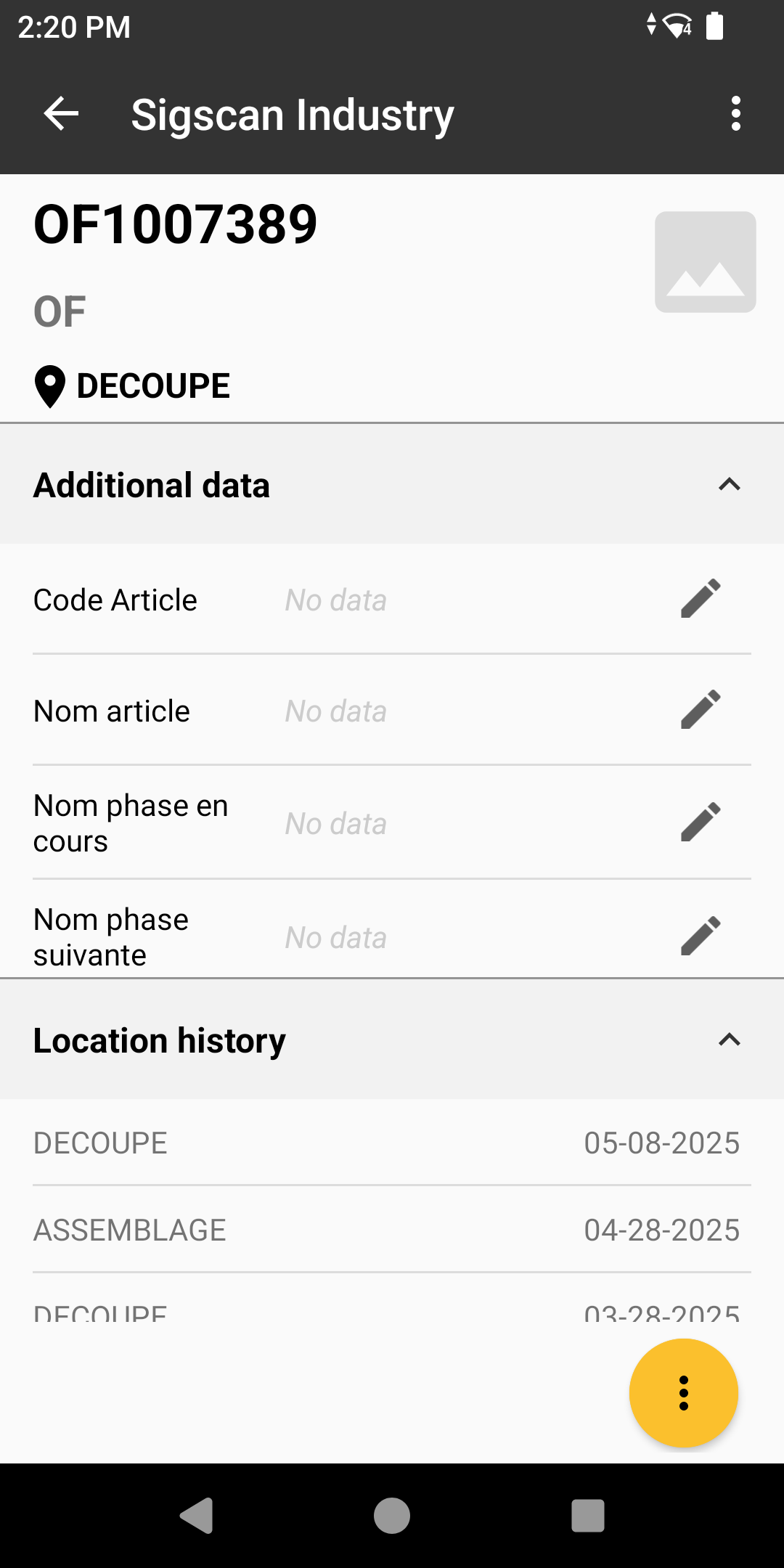
When you go to the list of work in progress section, you will see a complete list of your associated work in progress. Select one of them to see the details of the work in progress.
You will see the main information about the work in progress, its name, its last position and its type. You can consult the tool's additional data in the ‘Additional data’ sub-section and edit it if you wish.
You can also find the position history of your assets in the location history.
Declaring positions from the mobile application
The positioning of stocks in SIGSCAN is at the heart of our solution, and depending on the type of tag, they are positioned differently.
Active tags (BLE): emit signals every 5 seconds that are picked up by different receivers in zones that you have configured. The positioning of BLE tags is therefore automatic, thanks to configurations made when the solution was installed.
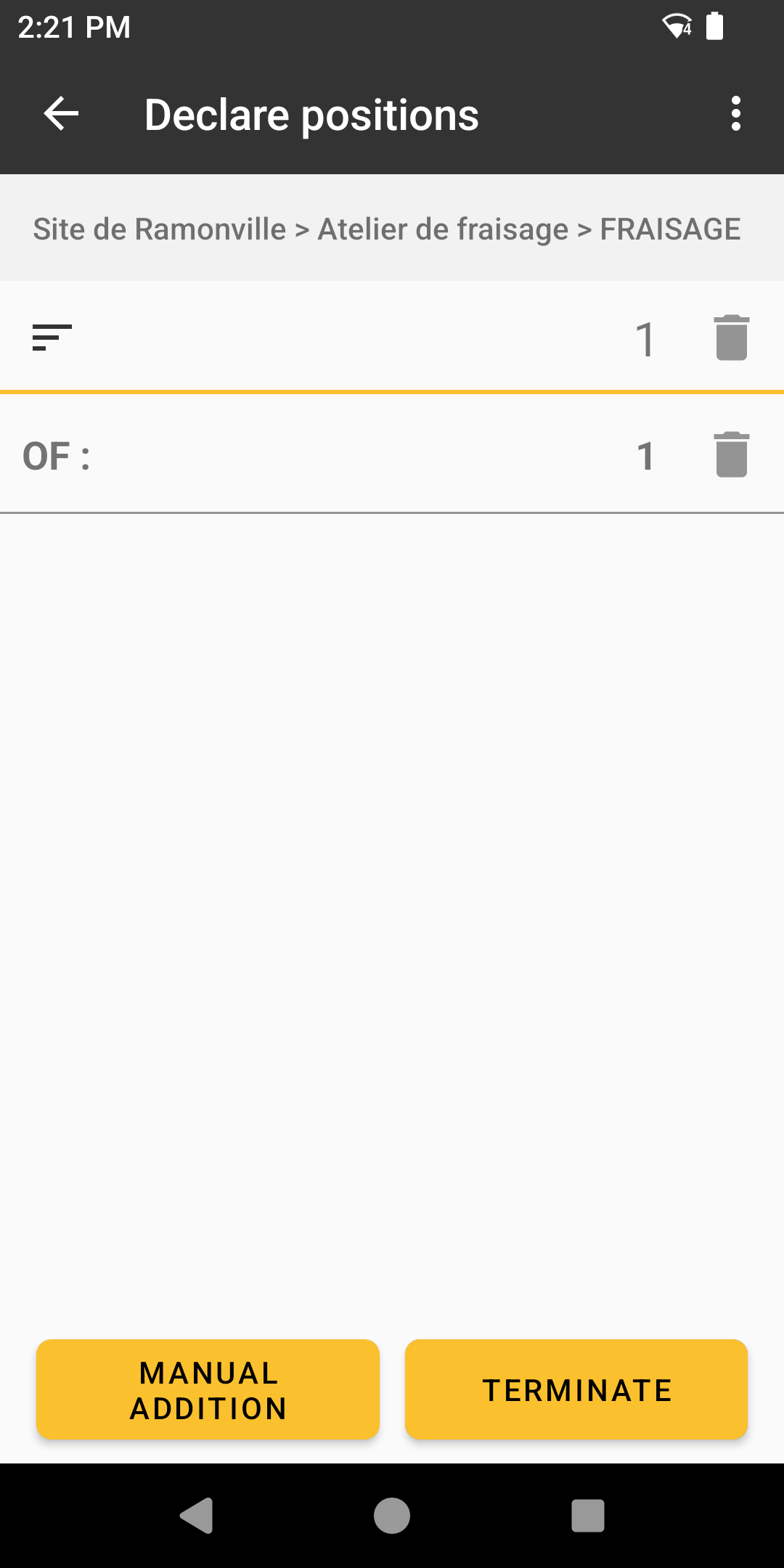
Declaring positions from the mobile application allows you to scan your stocks and assign them a position.
When tracking a BLE tag, positioning via the mobile application is rare, but it can help you locate out-of-coverage BLE receivers.
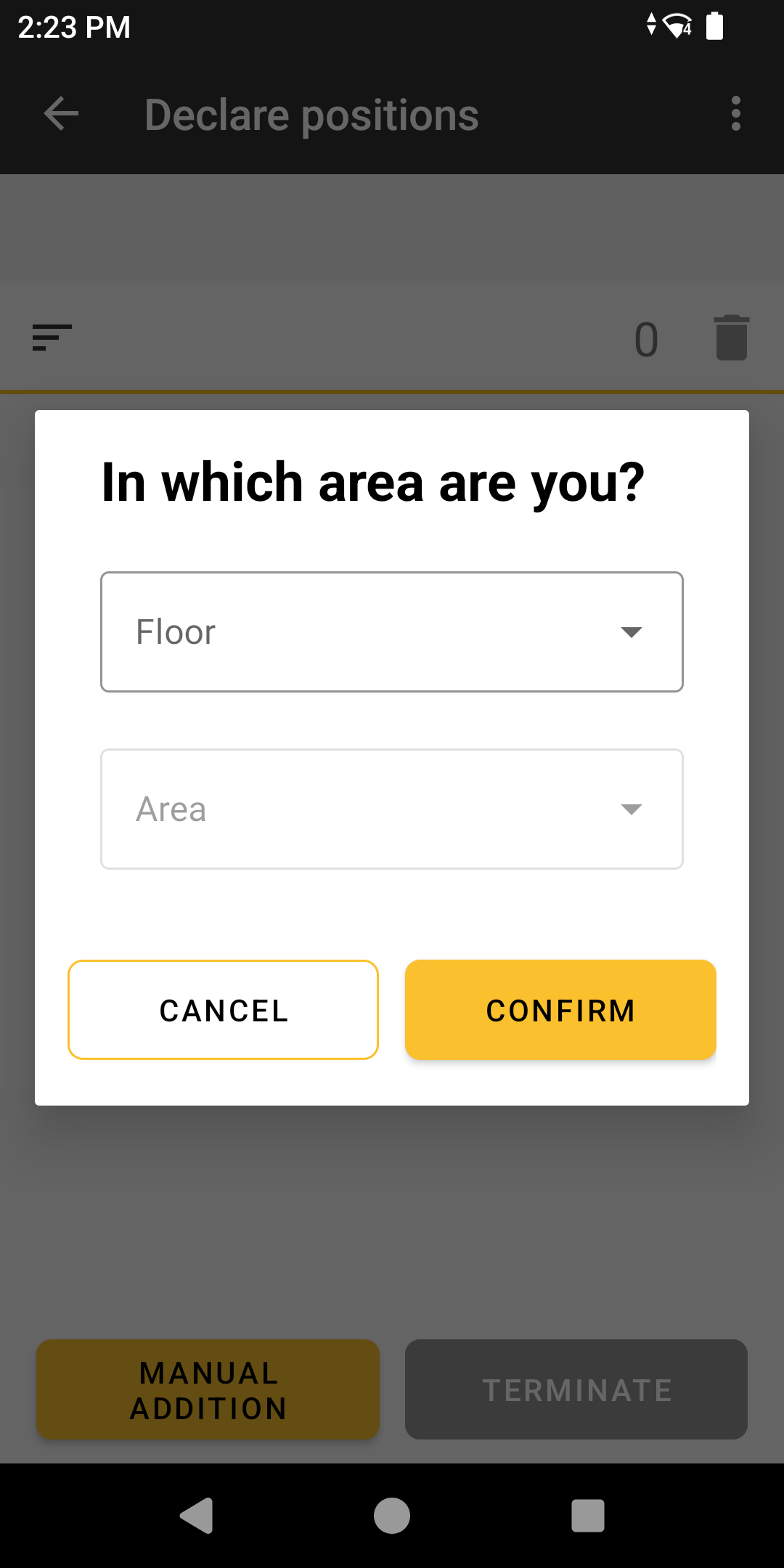
Click on Declare positions, indicate the zone you wish to assign to your outstandings, click on Manual entry and enter the floor and zone you require.
Scan or manually select the stocks for which you wish to declare a position.
Confirm your selection after checking that everything is correct, and the application will return you to the main menu with a confirmation pop-up at the bottom of your screen.
Dissociate a WIP from the mobile application
You can unlink any type of tag from the tag unlinking option on the mobile application. Simply scan the MAC address on the tag or manually search for the tag name in the list of tags.
Once selected, the tag dissociates directly and the application returns you to the main menu with a confirmation message at the bottom of your screen.
Create a new object from the mobile application
To create a new object on the fly from the SIGSCAN industry application, you need to change a parameter in the application..
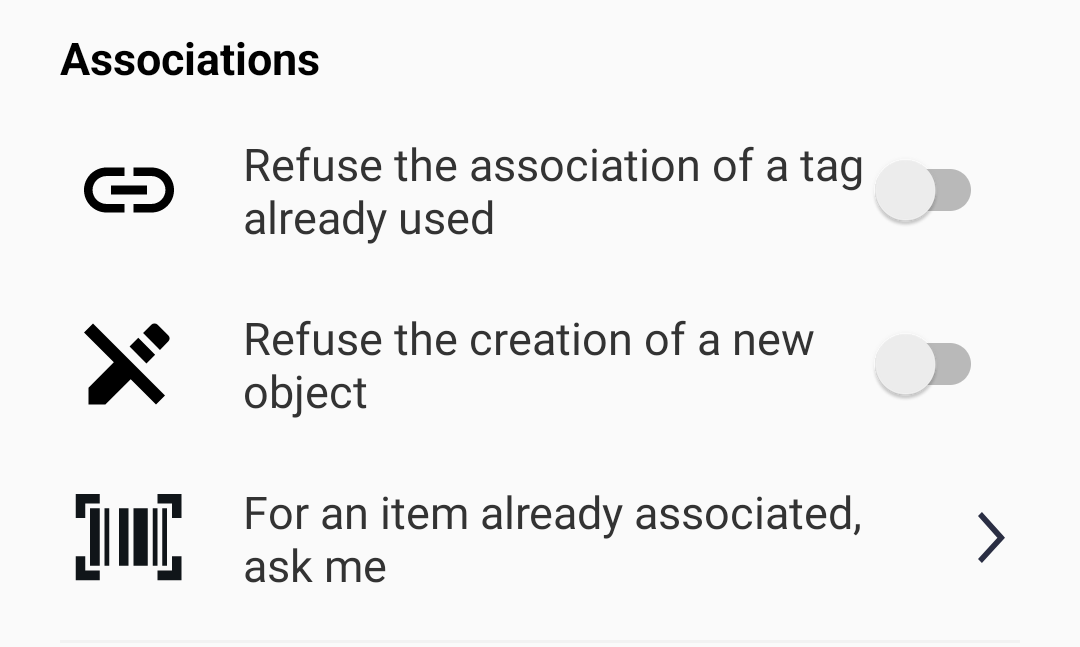
To activate this setting, click on the 3 dots at the top right of the application and go to the settings tab. Once in the list of parameters, scroll down to the Associations section and deactivate the ‘Refuse new object creation’ option.
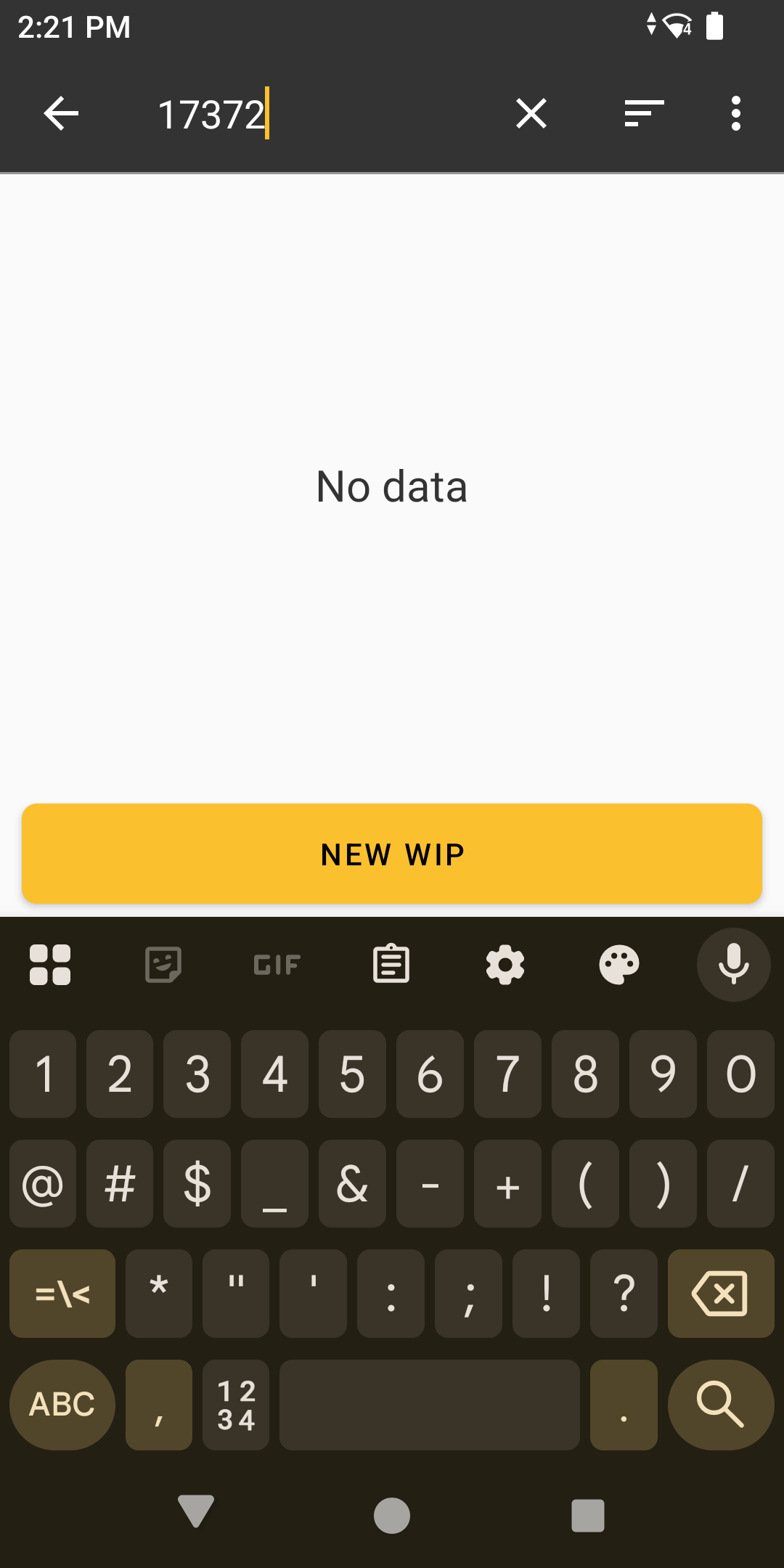
Then go to the object association menu and search for an object by manual entry, enter a non-existent object name. When you enter a non-existent object name, the application suggests that you create a new object.
Once you have clicked on New object, before continuing with the association process for your new object, you will be redirected to a page where you can fill in additional information about the object (type, configurable fields, etc.), then continue with the association process.