Picking
The Preparation module is designed to help you prepare your equipment and find it more quickly. Find your BOM directly in SIGSCAN and let your mobile terminal guide you through the preparation and validation stages..
WEB interface
The WEB interface is useful for configuring the module and viewing the pick lists. It is intended for administrators or production managers. .
View your to-do lists
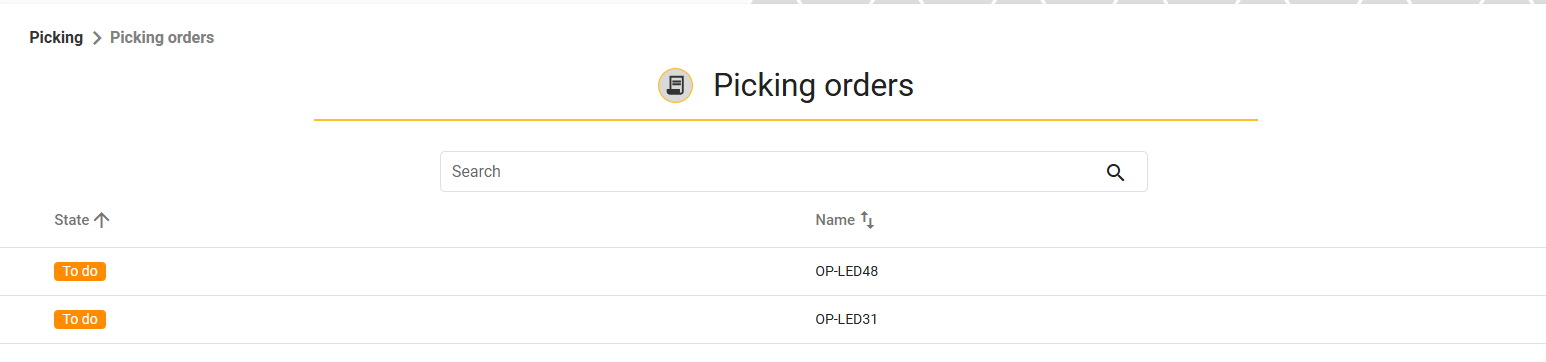
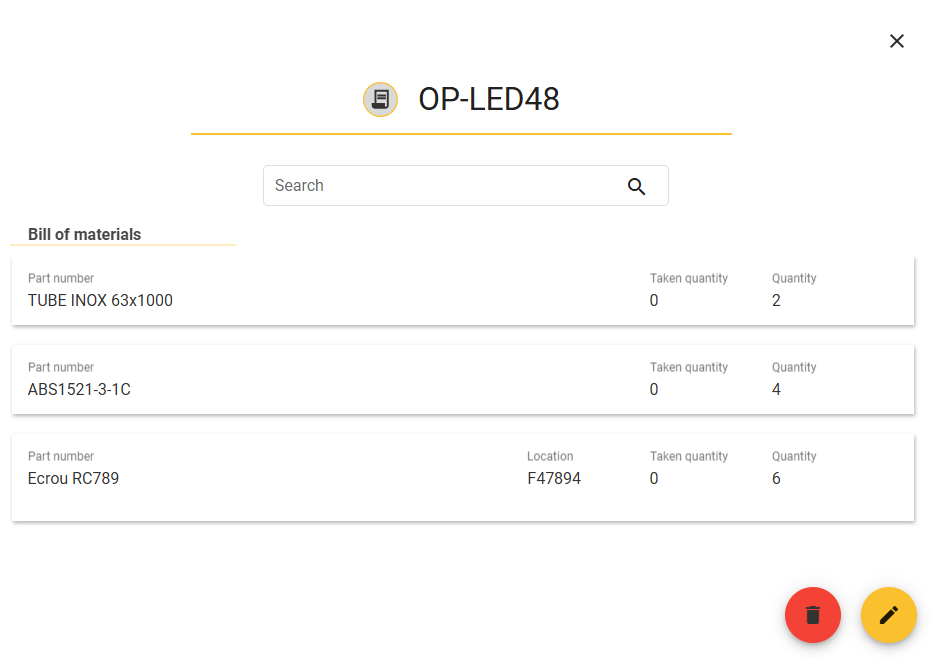
In the Preparation tab and on the Preparation order page, you can view your preparation lists, where you will find the status of the preparation order and its name. By clicking on the line of the list, you can go into detail and see the items that make it up. .
If you have the right to do so, you can modify a list whose status is TO DO (i.e. start in the field). You can also delete a list if it is no longer relevant or has expired.
Create a to-do list
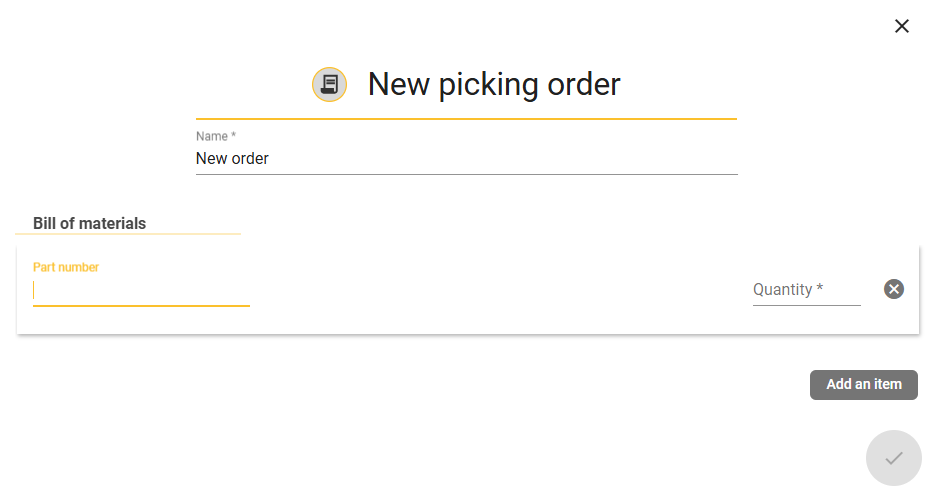
To create a new list of objects to be served, click on  at the bottom right of the page
Give your list a name and add items by clicking on  enter the code of the item to be added (selected from the list that appears) then enter the quantity to be served. If you have specified a location in the configurable fields, this can appear on the item line.
Importer vos listes à servir
You can import your picking lists using the connector provided by SIGSCAN. To do this, consult our guide for a automatic bulk import and contact SIGSCAN to find out how to set this up.
L’application mobile
The mobile application provided on SIGSCAN Industry solution mobile terminals will enable you to carry out all preparation actions. You can configure label printing during preparation. Configure the print model and printer via Bluetooth beforehand (voir Configuring the Preparation module)
Prepare a list
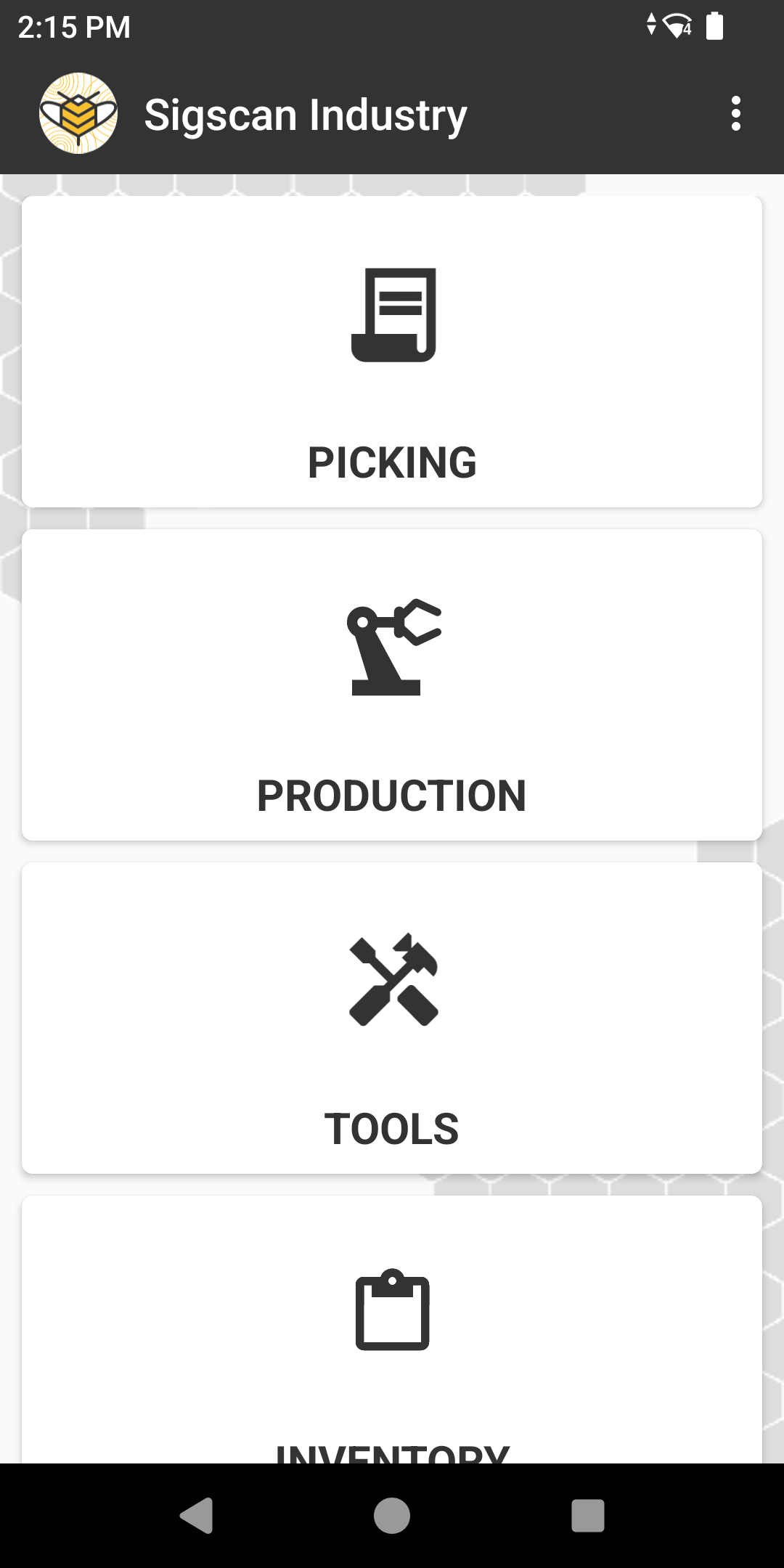
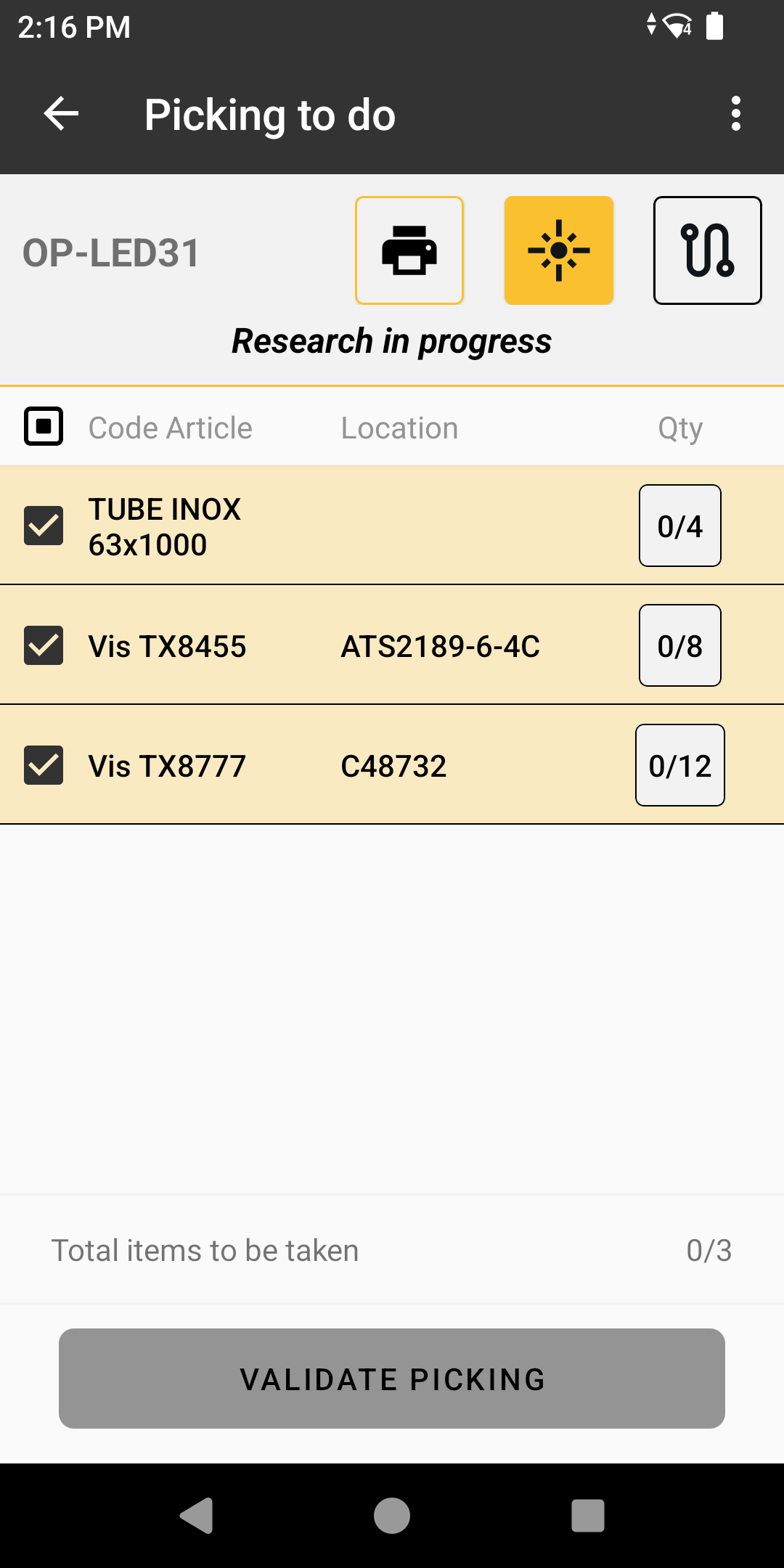
Log on to the SIGSCAN Industry application and enter the Preparation module, which will take you directly to the list of your works orders.
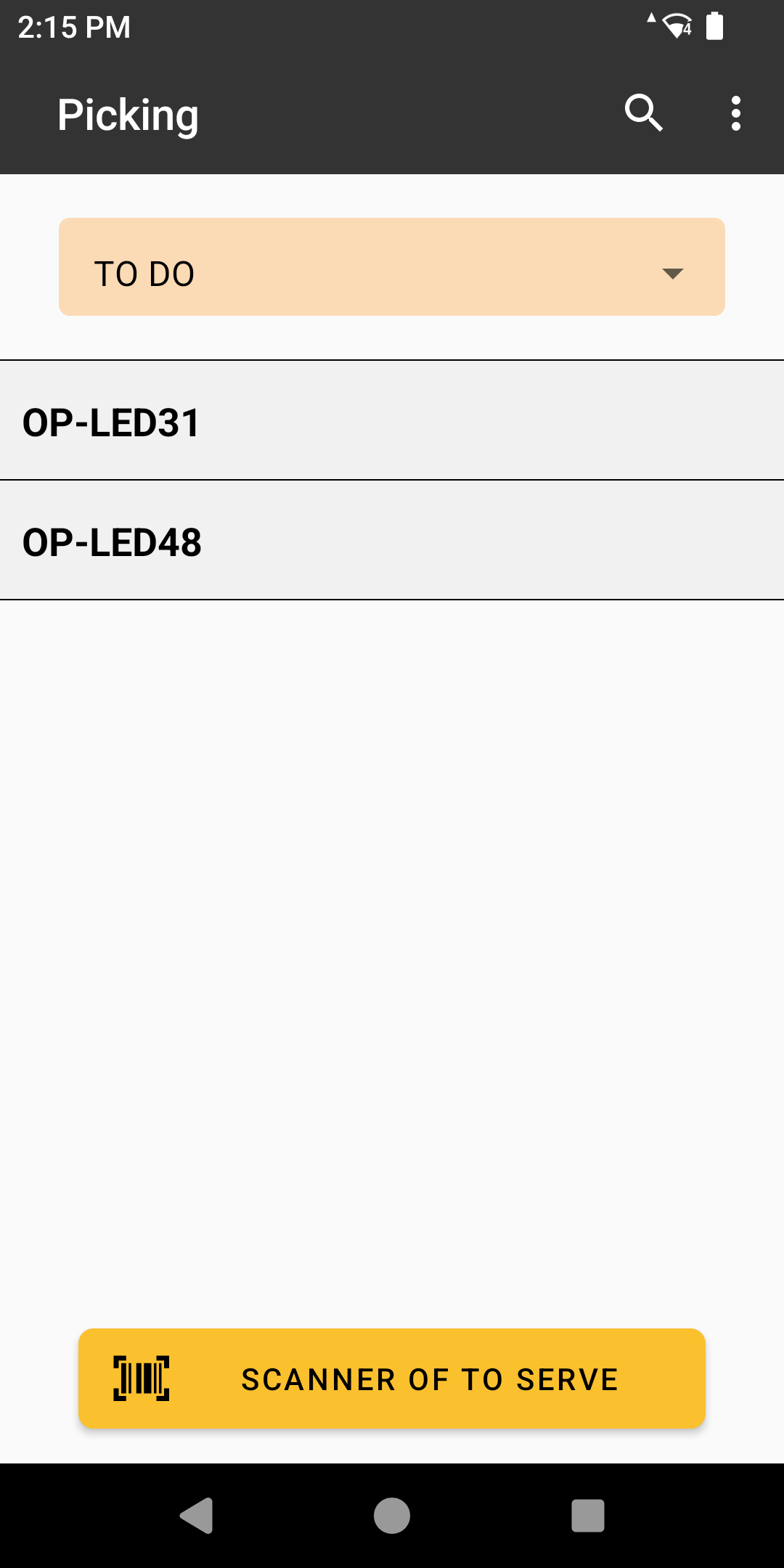
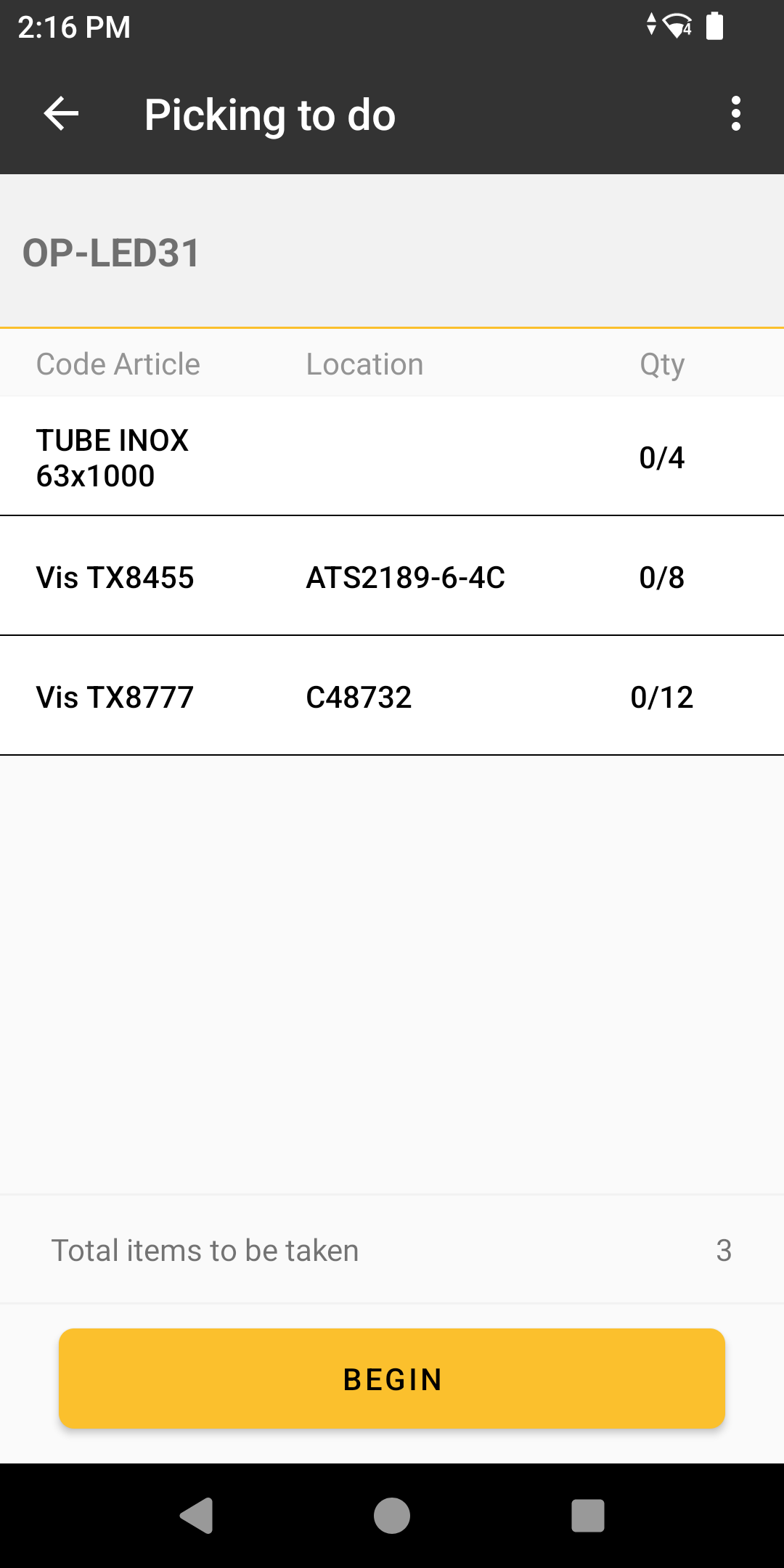
To make a picking list, click on your list. You can use manual mode to make your preparations or use guided mode. By default, the application shows you the picking lists to be made, but by clicking on them you can view the lists that are in progress, pending and made.
Flashing tags
To help you find the items you want to serve, flash the tags using the  select the items you want to flash and click on the icon.
In addition to the flashing, the display on the tag is modified to highlight it among your tags, as well as indicating additional information such as the relevant to-be-served list and the quantity of items to be served.
You can repeat this action any number of times during your search
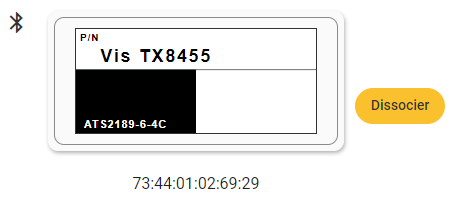
Classic template
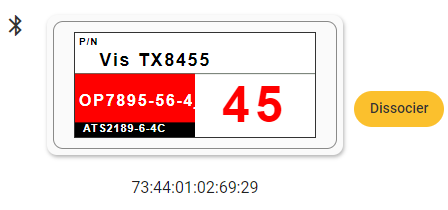
Template in search
Count your items
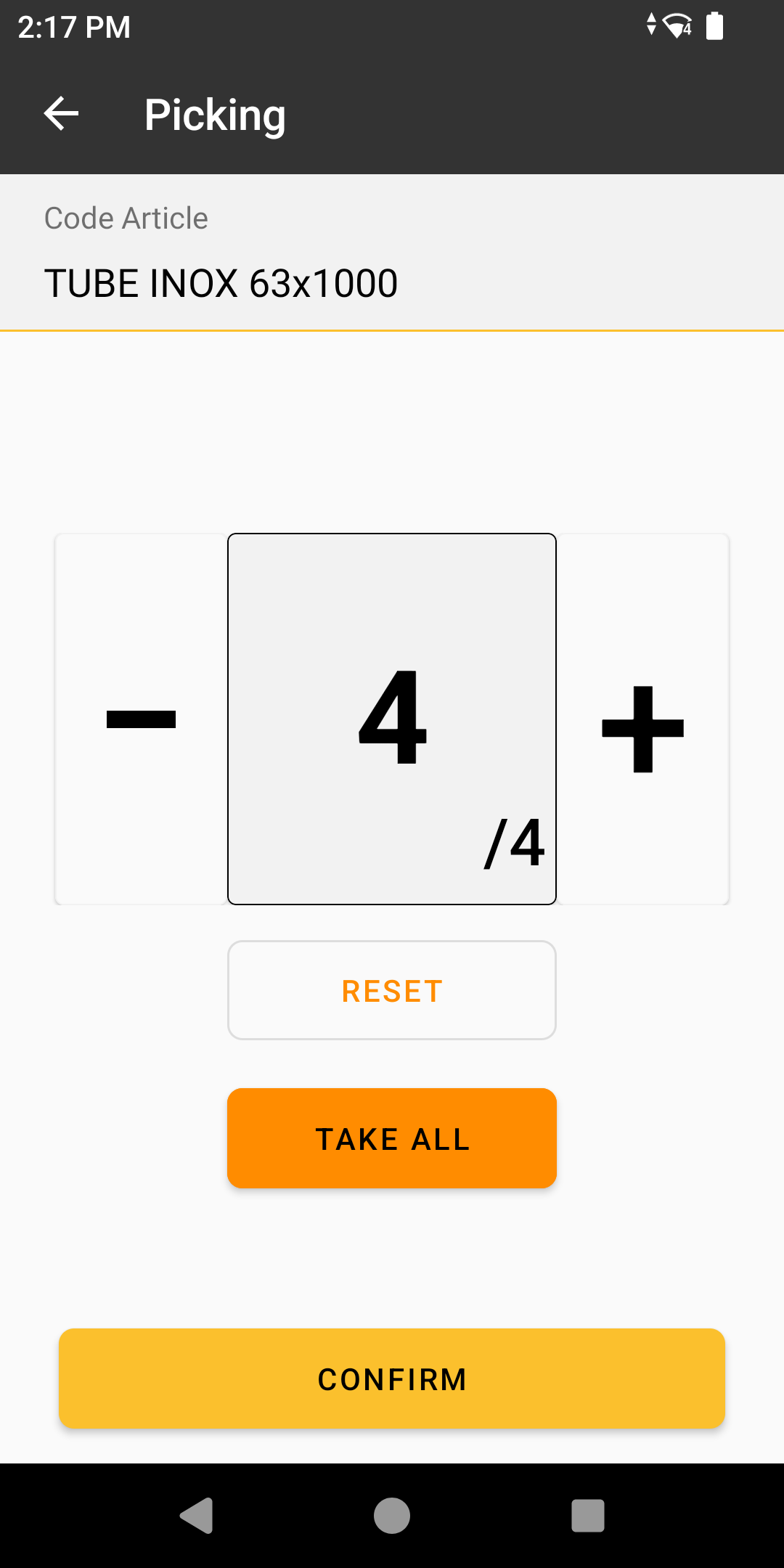
To count your items, click on the quantity icon. A page will open where you can enter the quantity of items served, and confirm your picking once it is complete (or not). You can finish serving your list later if you need to.
Print labels
In order to physically identify and enable your field staff to identify the type and quantities of items, you can print labels using a BLE portable printer (not supplied by SIGSCAN). To do this, select the items you have served and click on the icon  .
.
Guide mode
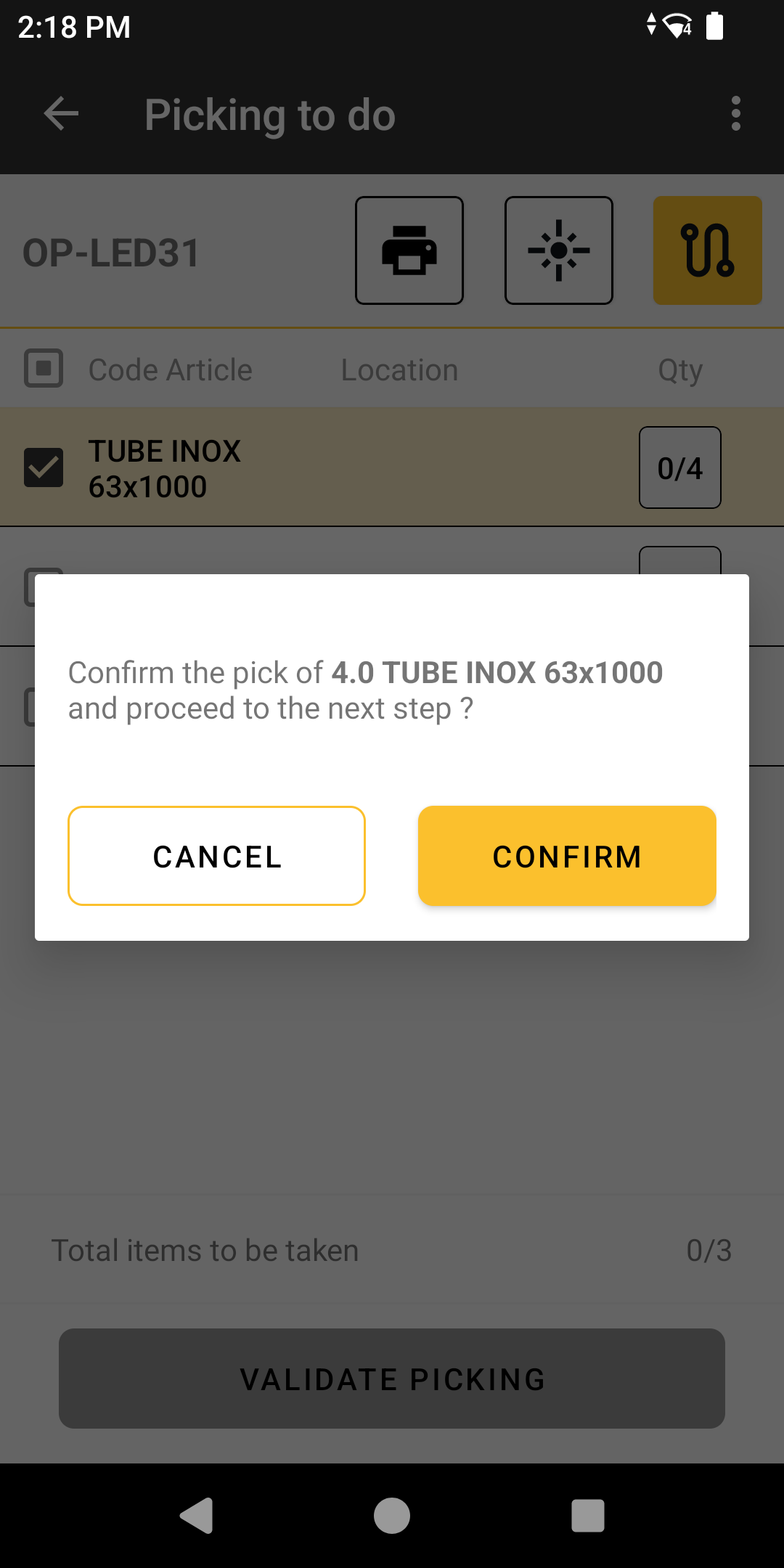
Guided mode allows you to automate the necessary actions and pick your items one by one. To activate guided mode, click on the icon at the top right of the screen.
When you launch guided mode, a pop-up appears with your first item. Guided mode automatically activates the flashing and reprogramming of the tag and also launches printing, confirm that you have taken the quantity noted on the pop-up to move on to the next item.
Pausing a preparation
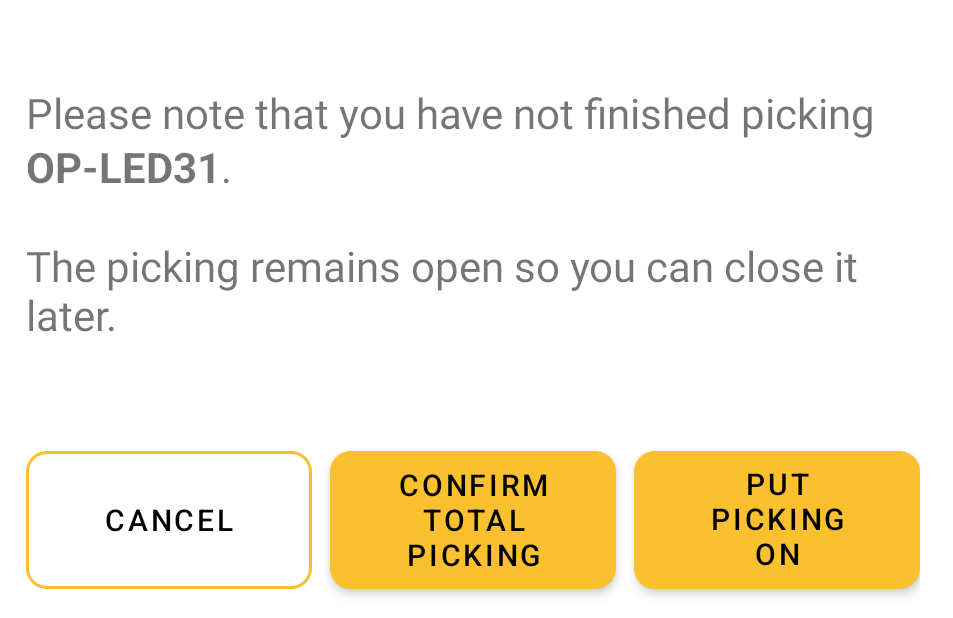
During a picking operation, you may be interrupted or run out of material. You can also validate an incomplete picking. When you click on validate picking or on a return arrow in the application, a pop-up appears, offering you the option of cancelling your action, validating the picking as it is or placing it on hold.