Tools settings
The settings in the tools module allow you to identify the different types of tool you want to monitor in the field. This is also where you configure the configurable fields that you associate with the tool type, which is additional information associated with a tool. Finally, you can configure the alerts for your tools to automate the sending of notifications to your tools. Les types d’outils
Create new type
To create a new type, click on at bottom right of the page.
Define the name of this new type and associate configurable fields with it. When you create an object, you fill in the configurable fields associated with the object type.
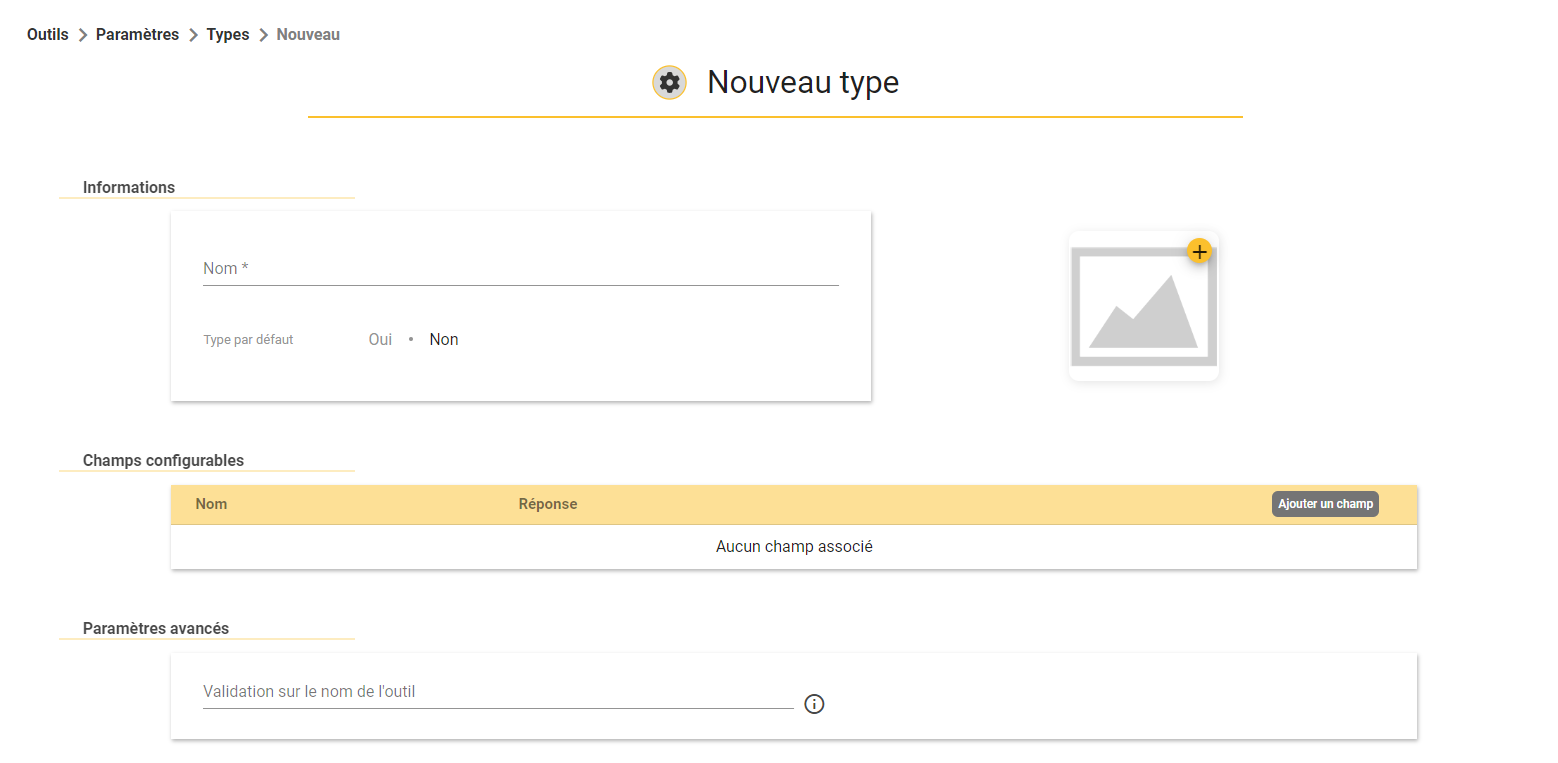
You can also define this new tool type as the default tool type and add an illustration to it.
Finally, you can define a regular expression to be used for the name of tools of this type. (e.g. Screwdriver XXX) Help with writing the REGEX regular expression is available directly from SIGSCAN (or on request from the AI).
Modify a type
To modify a tool type, select the type, click on at the bottom right of your screen.
All fields can be modified, and you can also delete the type using the red recycle bin.
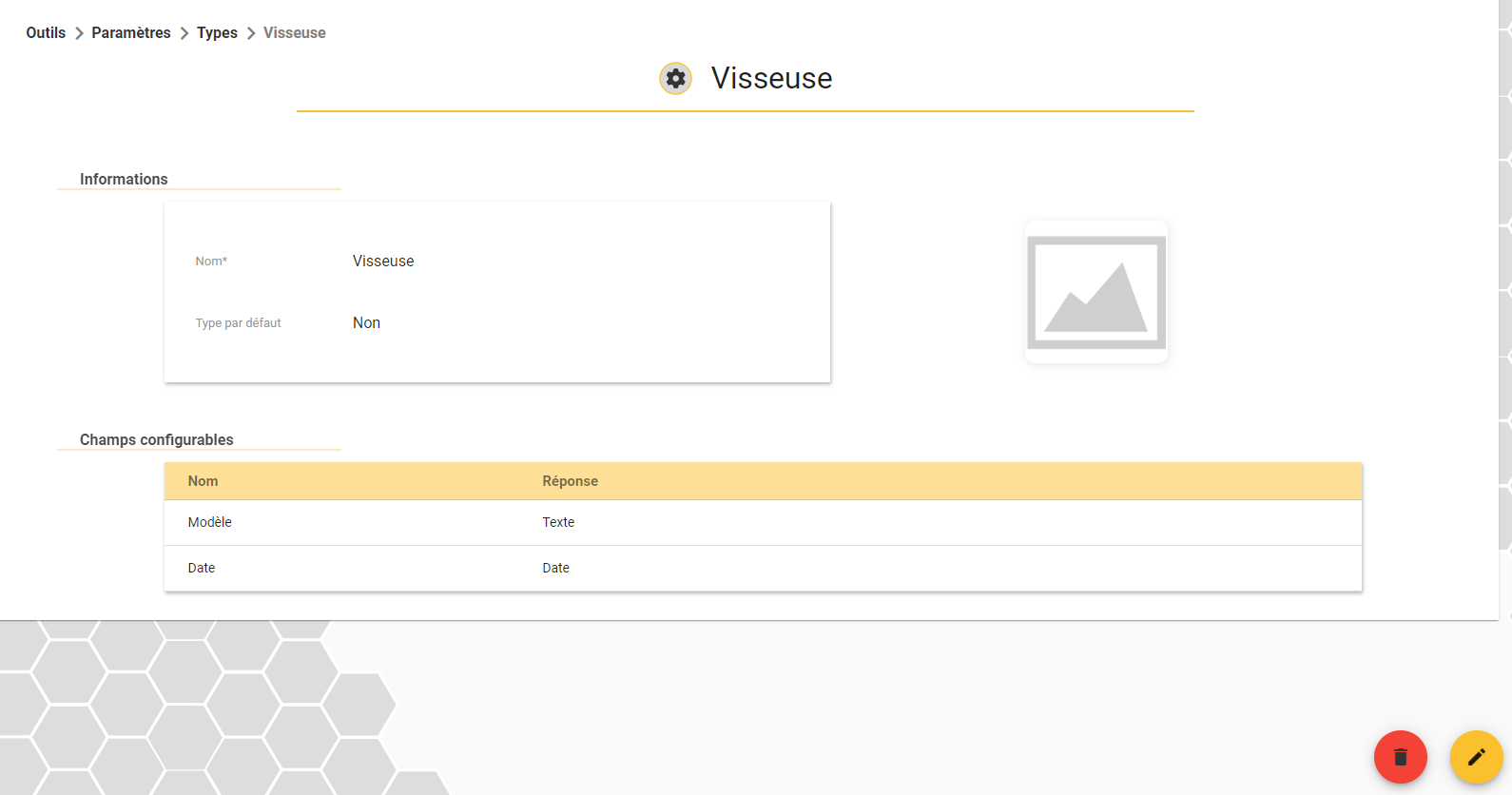
If you are importing your tools, remember to also change the name of the tool type in your import file, otherwise duplicate tools may be created.
Configurable fields
Configurable fields are additional tool information that you associate with your tool types. You fill in the configurable fields when you create an object.
Create a new configurable field
Click on at the bottom right of the page
Enter a name to describe the information required, then choose the type of response required (Boolean, Number, Text, Date, List, Duration).
You can also define whether or not this field is mandatory.
You can set fields to read-only to prevent modification after they have been created.
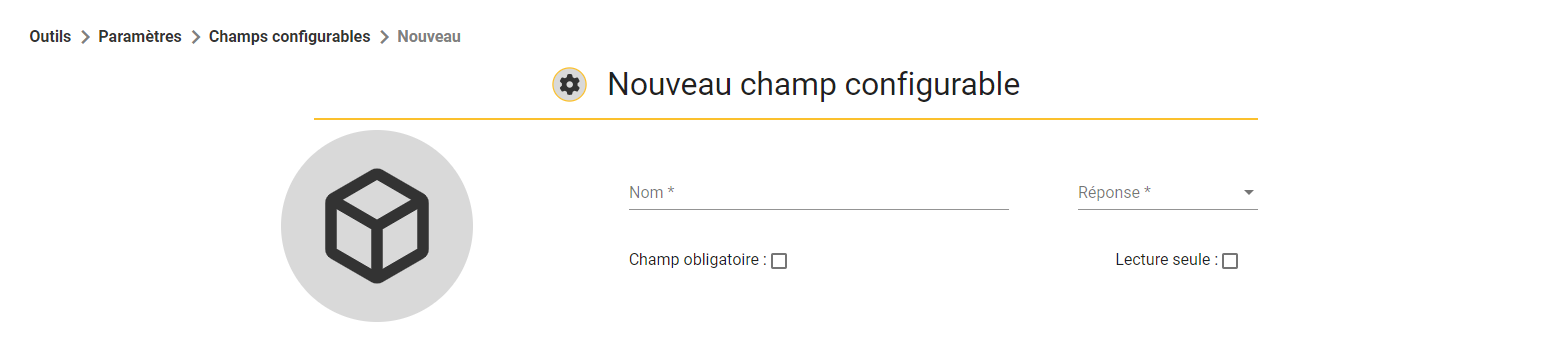
When you select the type of response, you may be asked for additional information (character limit, maximum length, regular expression, etc.) e.g. if you select List as the response, you need to define the items in the list.
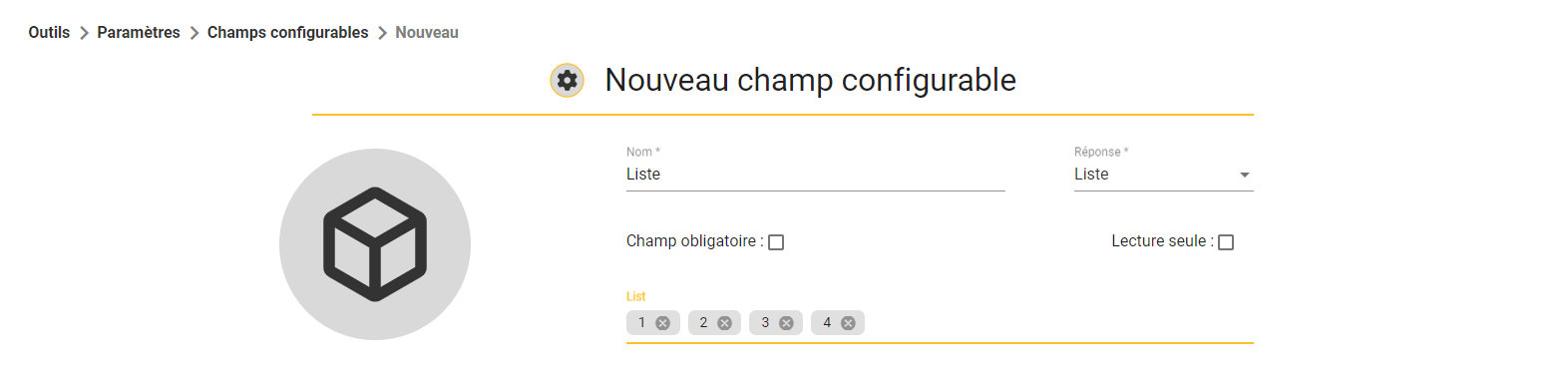
Then confirm at bottom right  .
.
Modifying a configurable field
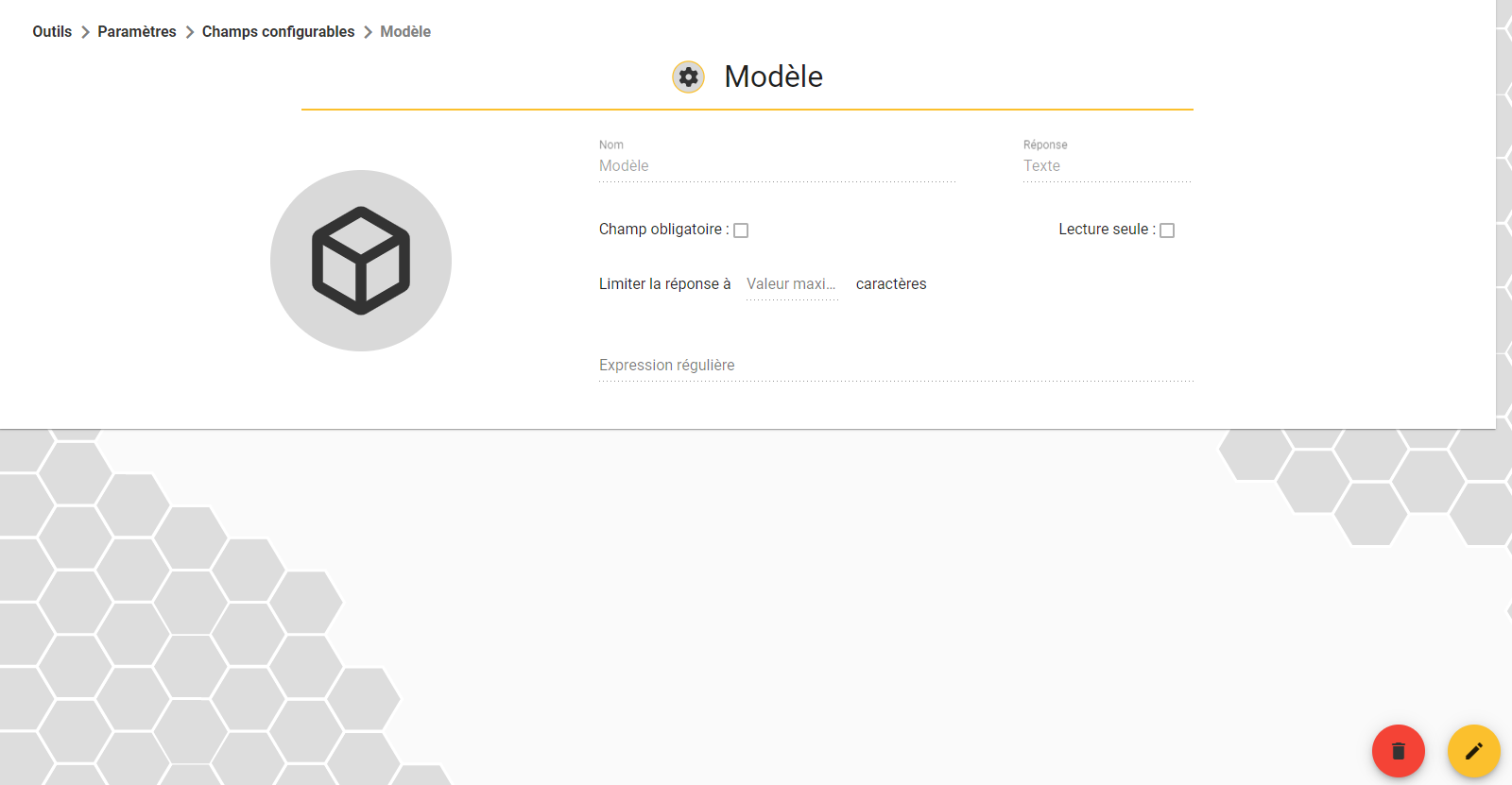
In the list of your configurable fields, go to the details of the field you want to modify.
All fields can be modified, and you can also delete a configurable field using the red bin.
Alertes
Set up new alerte
To configure an alert for your tools, go to the list of alerts on the alert page of the tools module settings.
On this page you will find a list of the alerts you have configured. To create a new alert, click on at the right bottom of the page.
There are several ways of configuring alerts, so it's up to you to choose the option that's best for you.
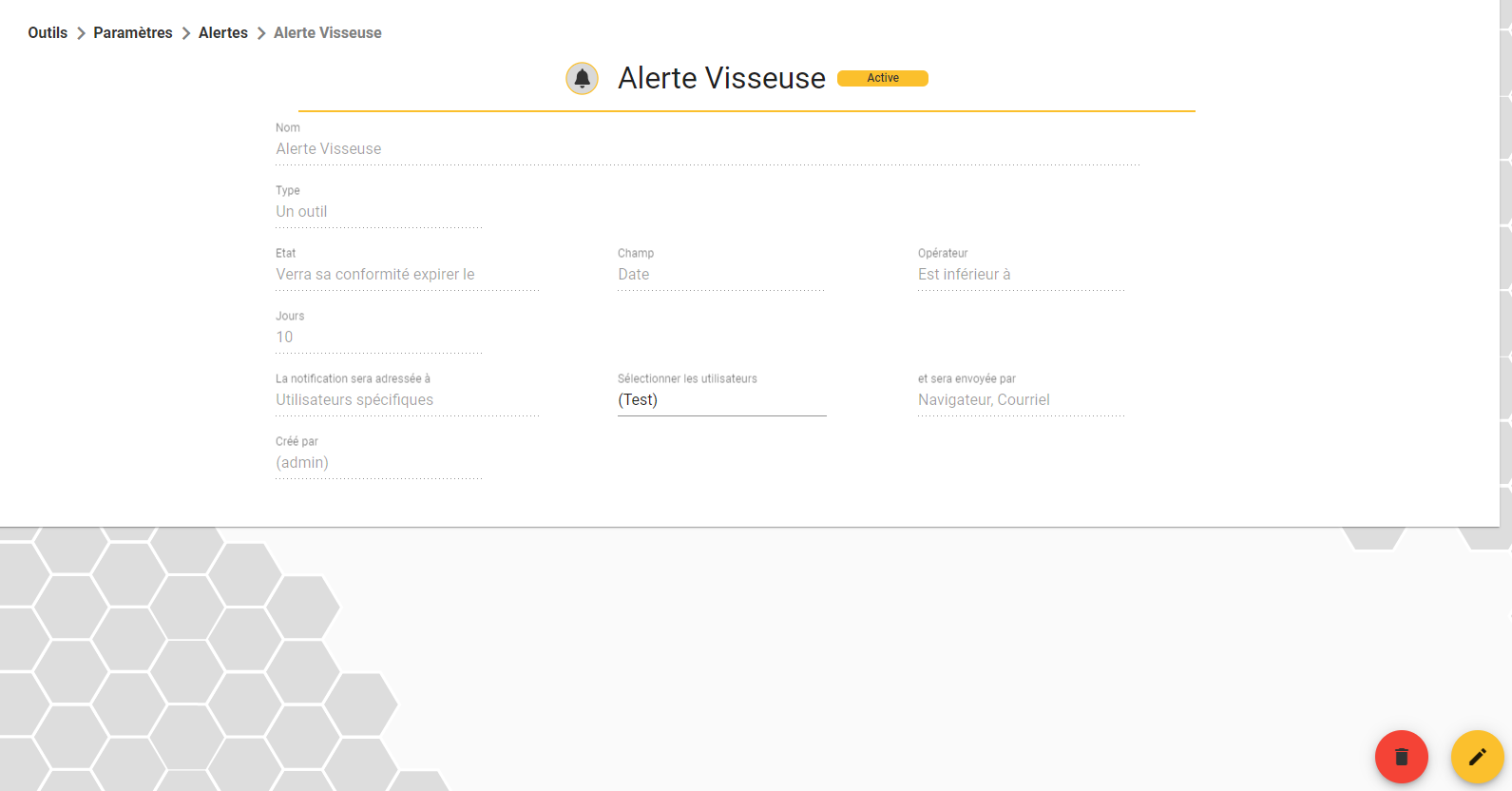
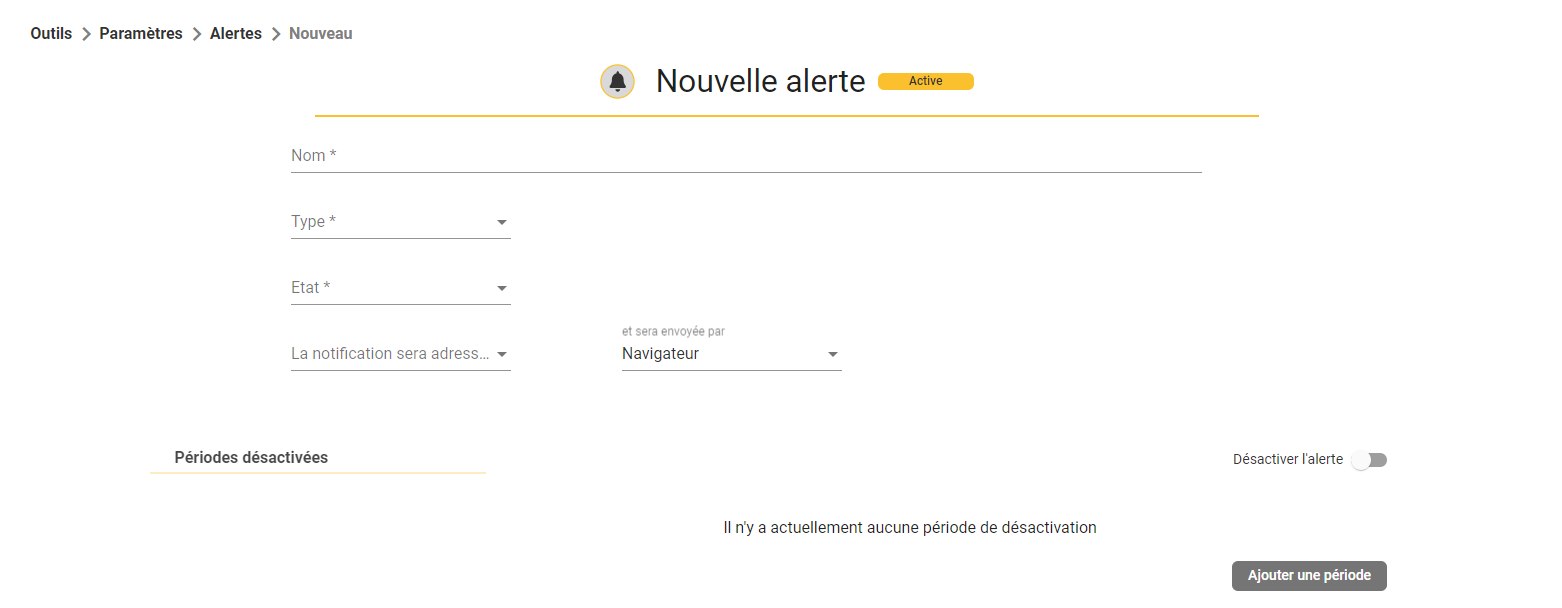
To configure alerts, you need to fill in 4 mandatory sections: the name, the object(s) affected, the status that triggers the alert and the destination of the alert.
You can also temporarily deactivate the alert.
Description of the different types and statuses :
Type :
A tool: Your alert will relate to all your tools
The tool: Your alert will relate to the tool or tools identified
Tool type: Your alert will relate to all tools of this type
Custom tool field: Your alert will apply to all tools containing the value indicated in the selected configurable field
Status:
Entered the zone: The object has entered the identified zone
Exited the zone: The object has exited the identified zone
Conformity will expire on : The object has reached its compliance date, the X defined in a configurable field in the object:
Is equal to = today (Date of configurable field)
Is less than = In X days (to be defined), depending on the value of the configurable field
Is greater than = Since X days (to be defined), depending on the value of the configurable field
At low voltage: The tag associated with the object is discharged (we advise you to configure a battery alert on all your tags). (see Hardware alert management)
Finally, choose who your alert will be sent to and how (default notification, option to send an email).
You can also define programmed deactivation periods for your alert or deactivate it manually.

Modify alerte settings
To change the settings for an alert, select the alert you want and click on at the bottom right of the screen.
All fields can be modified, once you have validated the changes in the bottom right-hand corner.