
Set up Industry Inventory
The Inventory module enables you to make inventories of stock or your equipment. Here you will find the information you need to integrate your inventory database, create your types and their configurable fields.
Types are the broad categories to which your objects belong. When you create an object, you are asked for its type. You can also associate configurable fields with your types, enabling you to enter additional information about an object. The information requested may vary depending on the type to which the object belongs.
Types of objects
Create new type
To create a new type, click  at the bottom right of the page.
Define the name of this new type and associate configurable fields with it. When you create an object, you fill in the configurable fields associated with the object type.
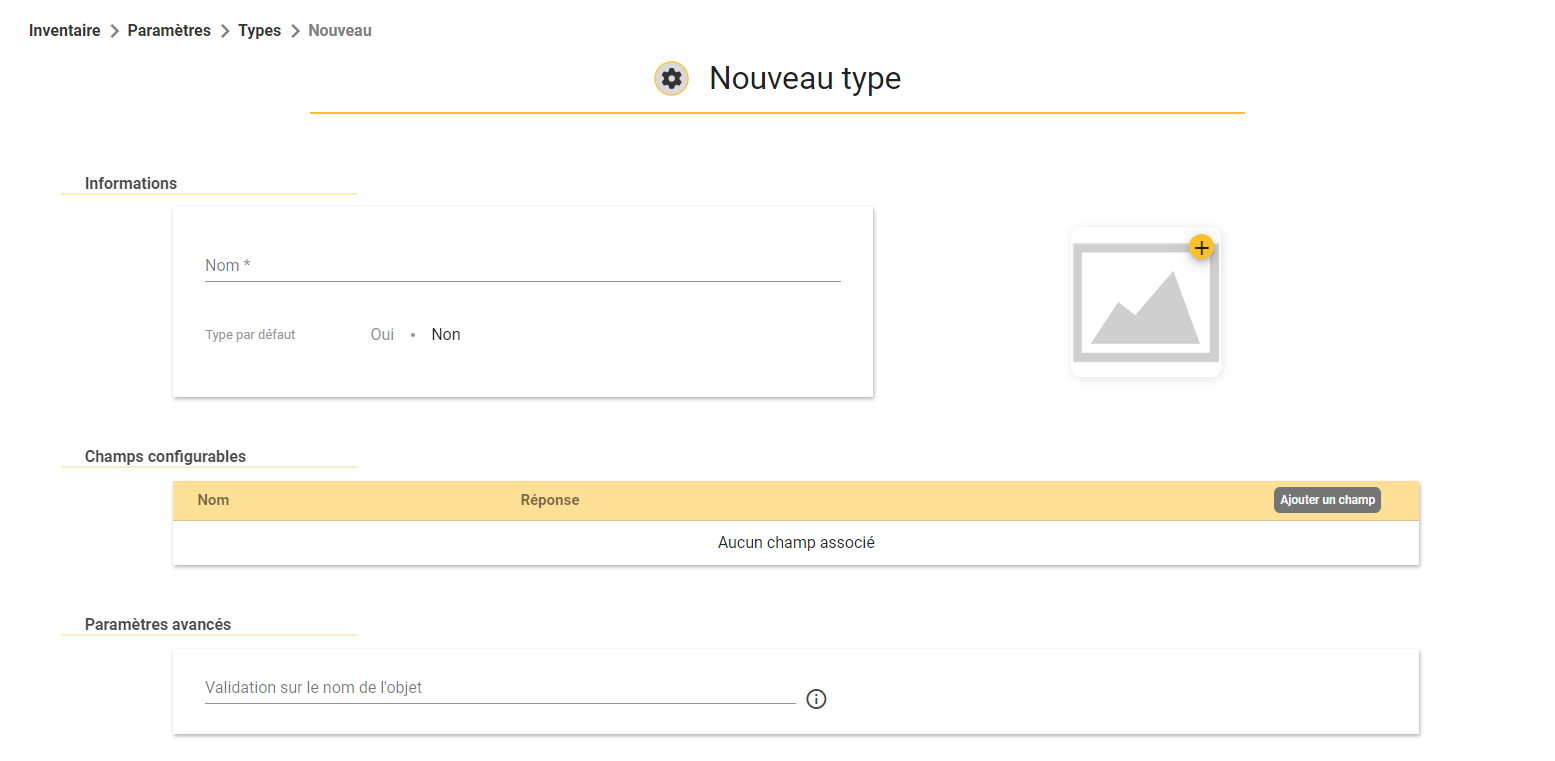
You can also define this new object type as the default object type and add an illustration to it.
Finally, you can define a regular expression to be used for the name of objects of this type. (e.g. Palette XXX XXXXX) Help on writing REGEX regular expressions is available directly from SIGSCAN (or on request from the IA).
Modify the type
To modify an object type, select the object type, click on  at the bottom right of your screen.
All the fields can be modified, and you can also delete the type using the red recycle bin.
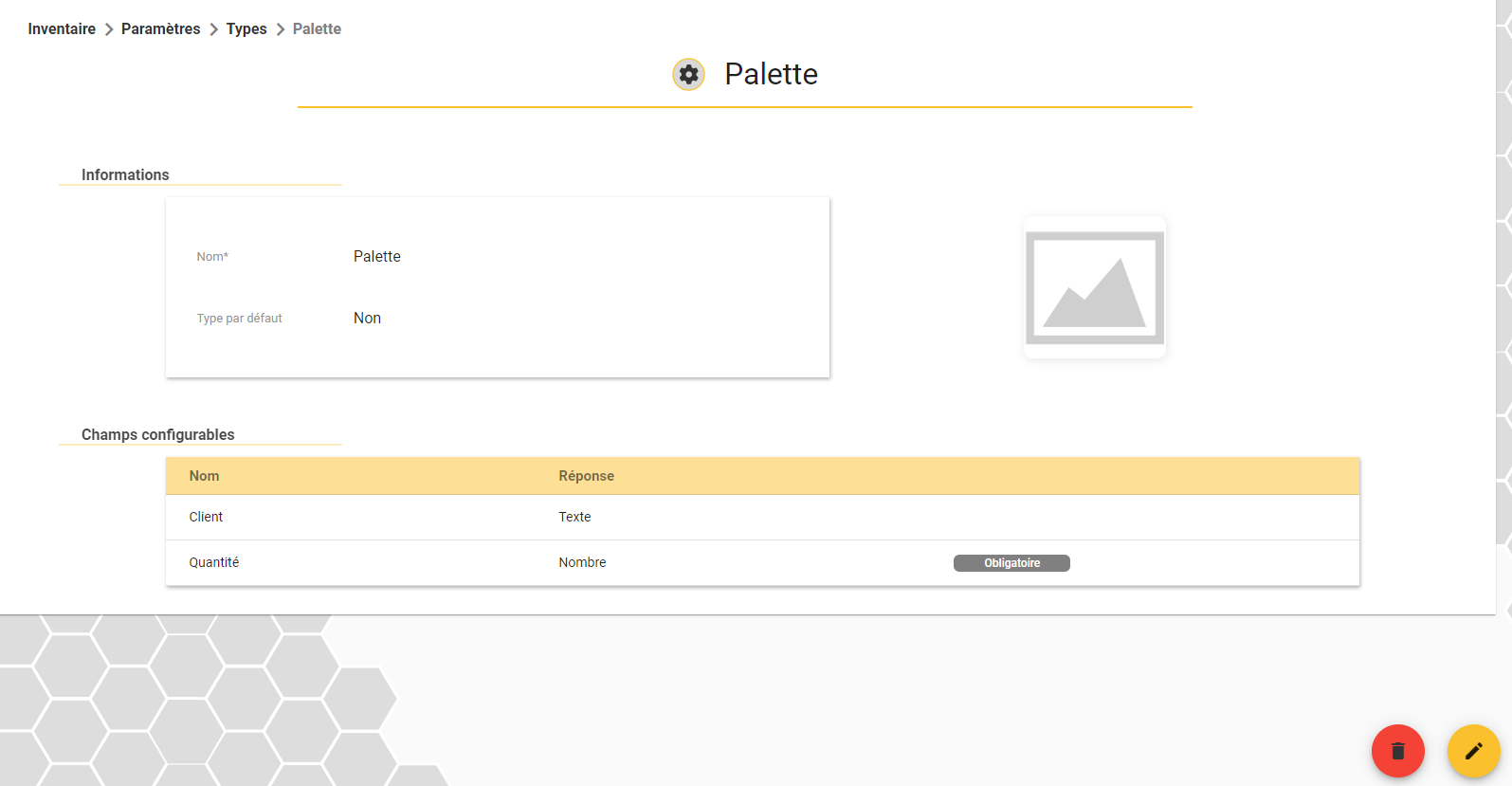
If you import your objects, remember to also change the name of the object type in your import file, otherwise you may create duplicates.
Custom fields
Configurable fields are additional information about an object that you associate with your object types. You associate configurable fields with an object type and fill them in when you create an object.
Create new custom field
Click on the at the bottom right of the page.
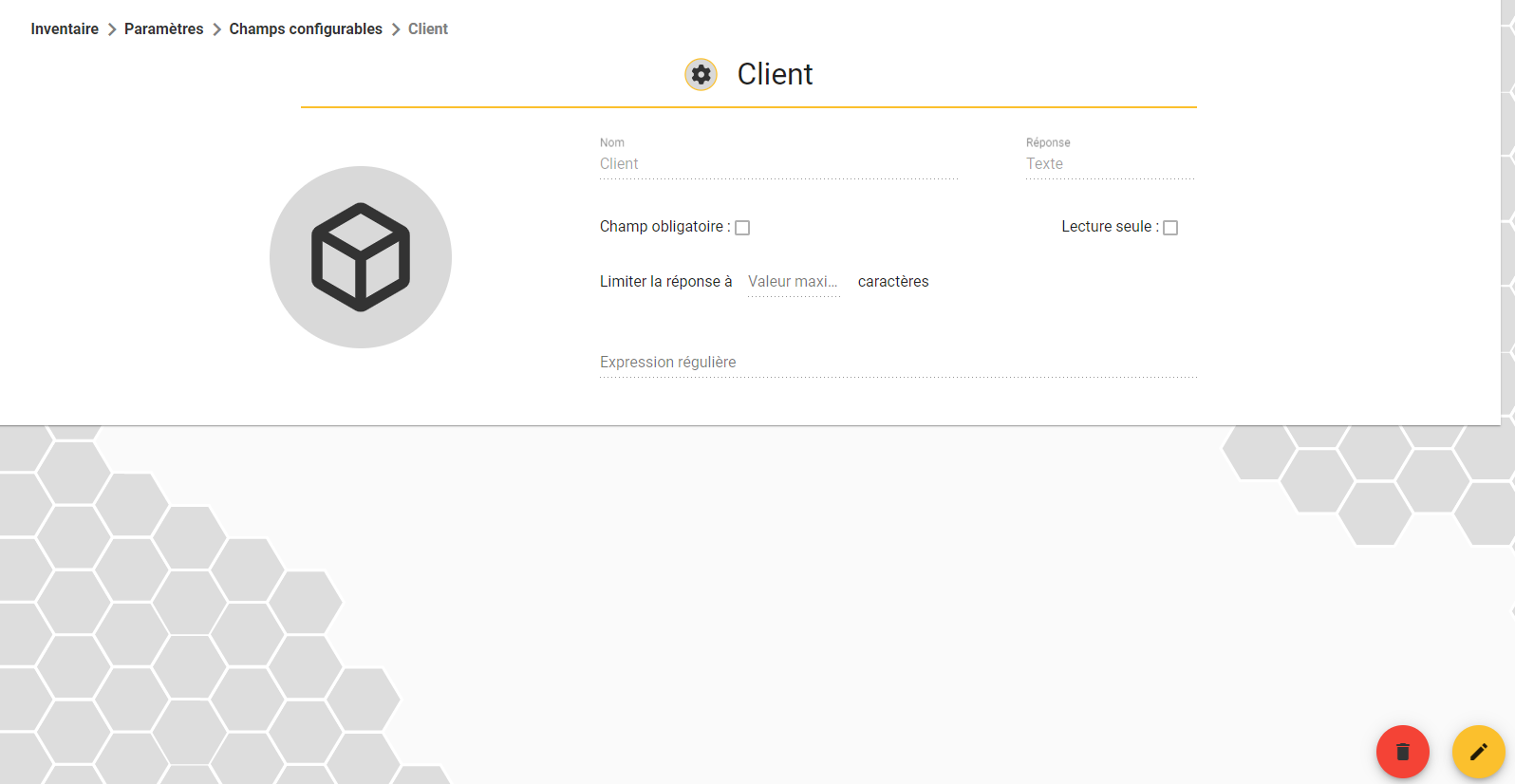
Enter a name to describe the information required, then choose the type of response required (Boolean, Number, Text, Date, List, Duration).
You can also define whether or not this field is mandatory.
You can set fields to read-only to prevent modification after they have been created.
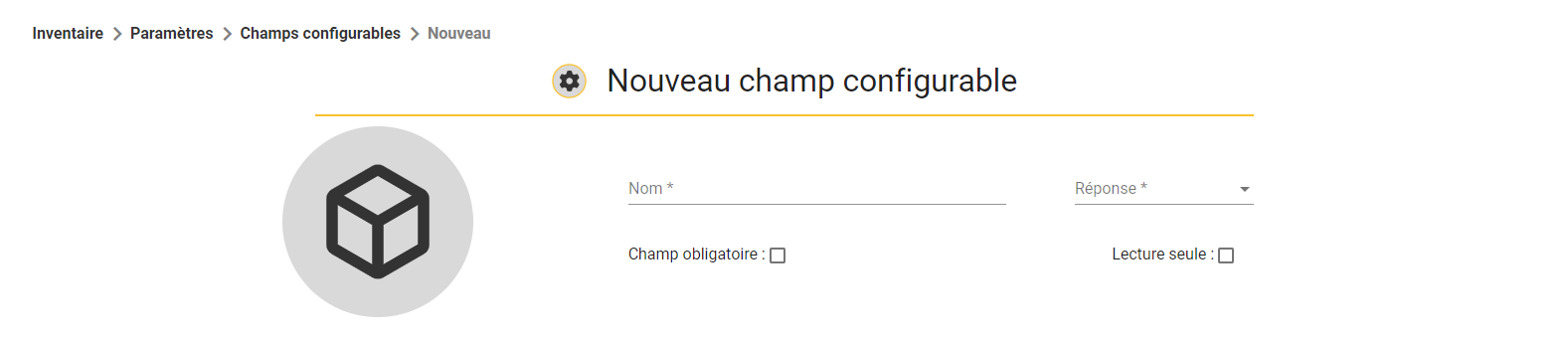
When you select the type of response, you may be asked for additional information (character limit, maximum length, regular expression, etc.) e.g. if you select List as the response, you need to define the items in the list.
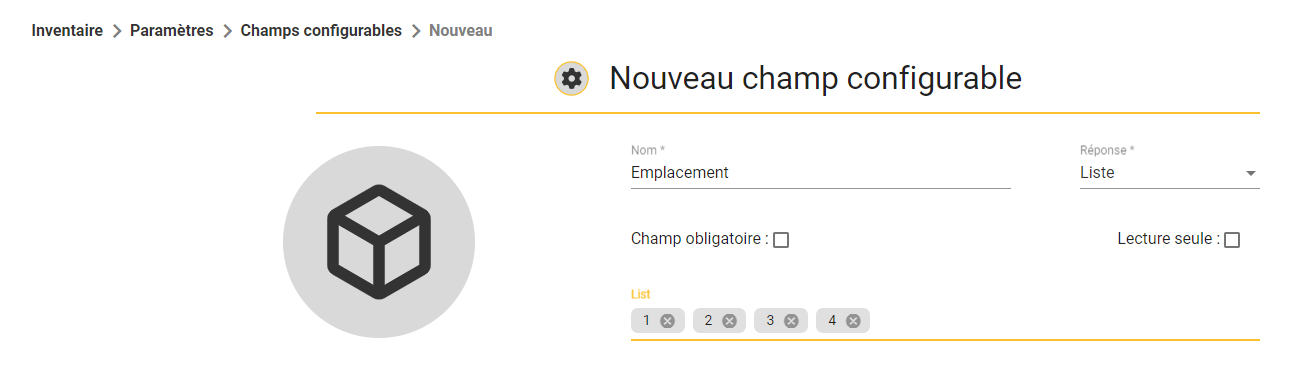
Then confirm at bottom right  .
.
Modifier un champ configurable
In the list of your configurable fields, go to the details of the field you want to modify.
All fields can be modified, and you can also delete a configurable field using the red bin.
Importer votre liste d’objet
If your company has previous inventory lists or an updated stock list, you can import this list to create the objects in SIGSCAN as they are registered with you.
To do this, go to the list of your items, click on  at the bottom right of your screen and follow the information.