Naviguer dans SIGSCAN Industry sur l'application mobile
The mobile application is available on the mobile terminals supplied with the SIGSCAN software. The mobile terminals consist of a mobile terminal (similar to an industrial smartphone) that runs on Android and is coupled to an RFID reader.
Starting up and connecting to the application
From the mobile terminal, enter the SIGSCAN Industry application.
The mobile terminal and the application are reconfigured on your installation by the SIGSCAN teams, so you won't have to do any configuration work on the devices.
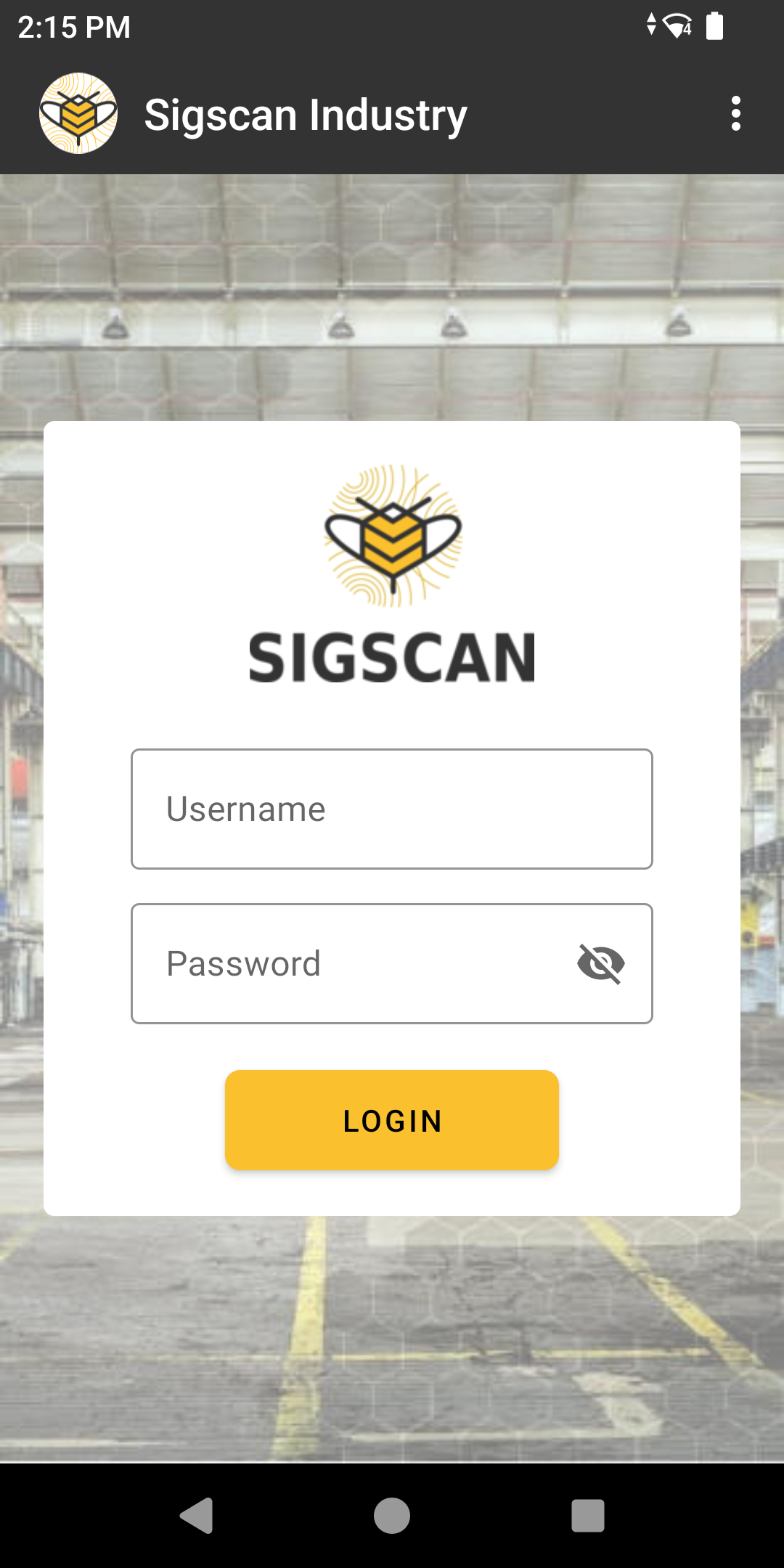
Log in to the application using your login details
Once you have logged in, you must select the organisation you wish to use (if you only have one organisation, this step is not necessary).
You must now select the module for which you wish to use the application (if you only have one module, this step is not necessary).
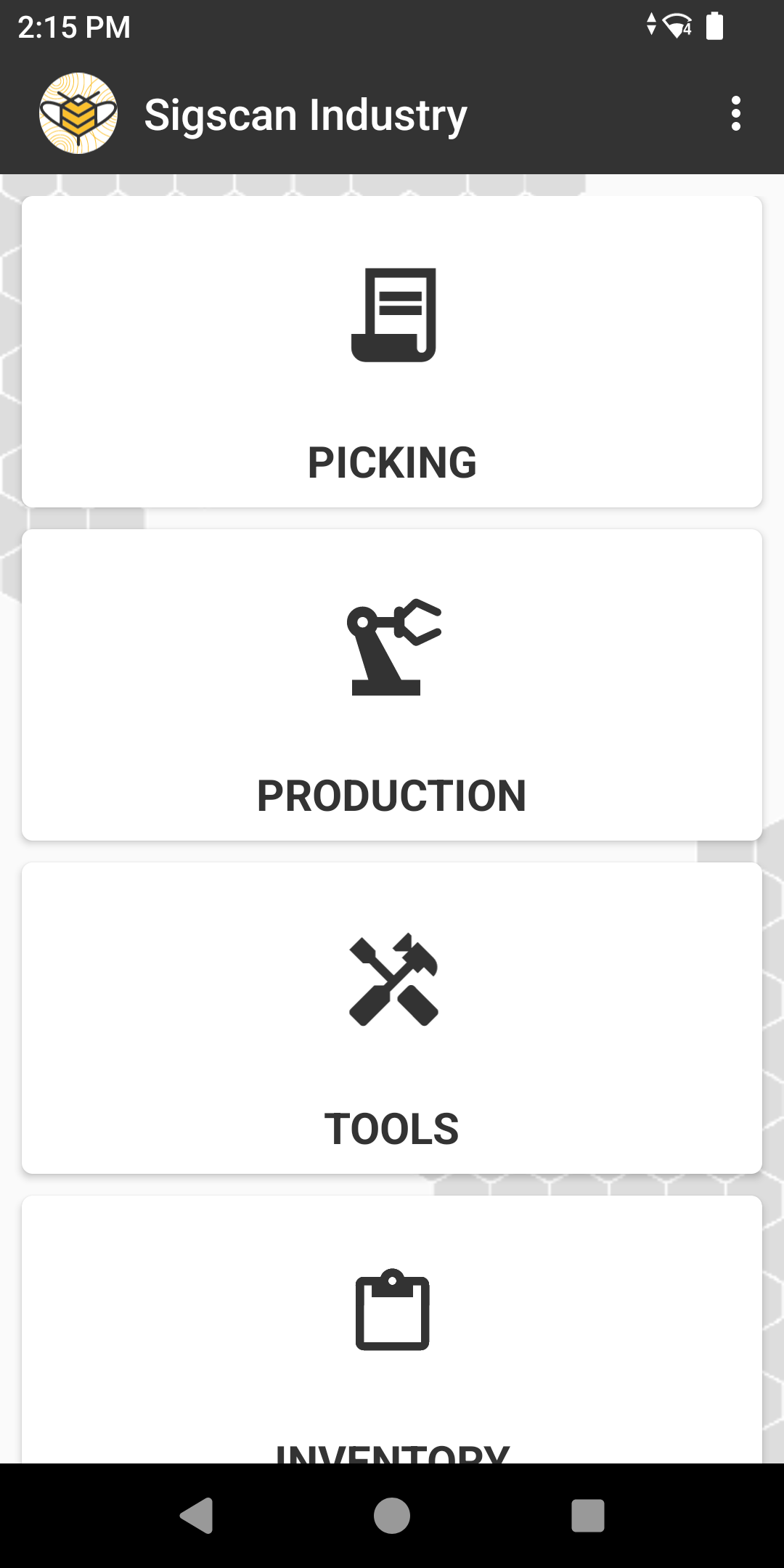
Navigating the modules
More detailed explanations of how to use the modules can be found on the module explanation pages.
Preparation
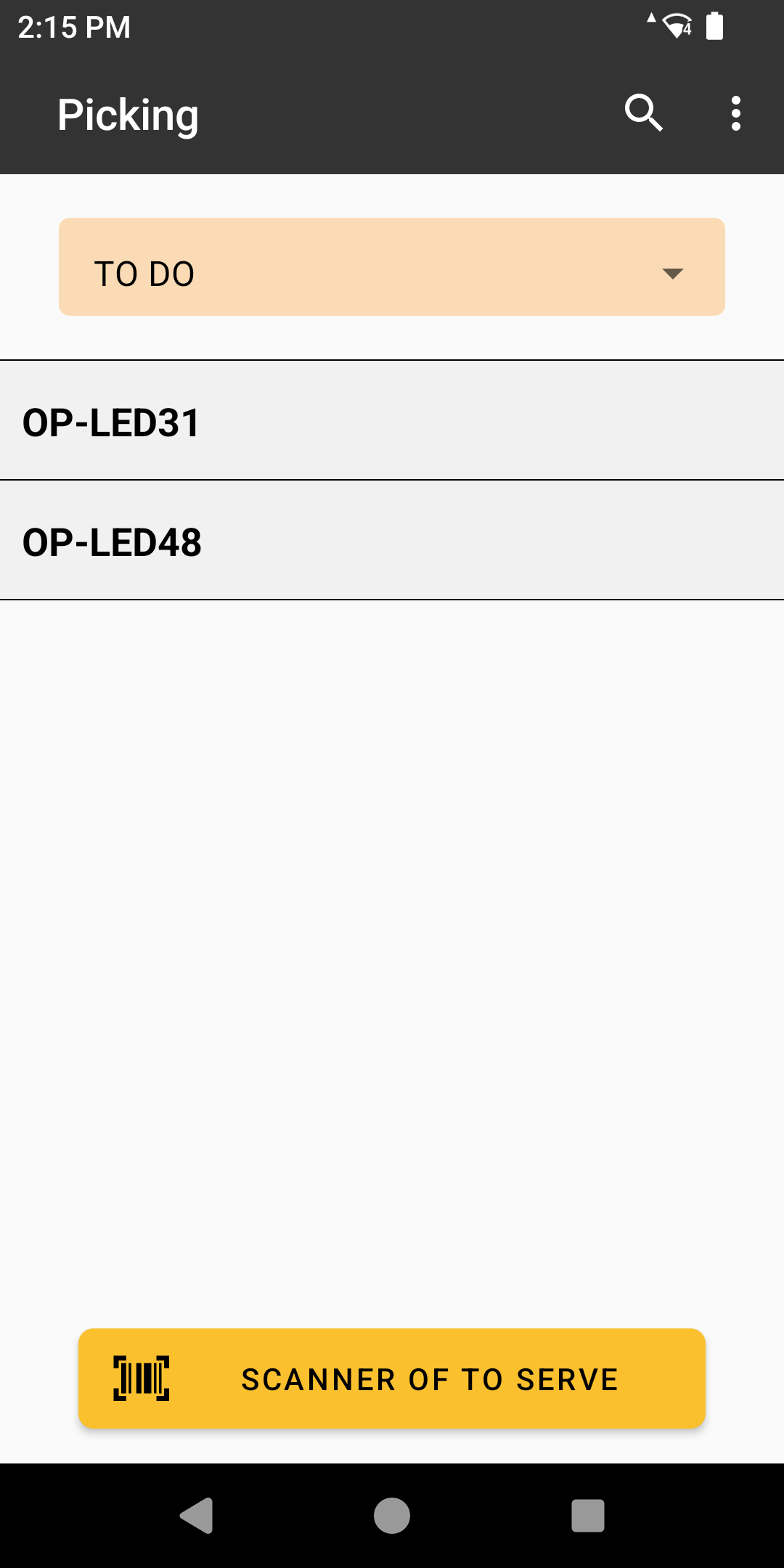
In the Preparation module, you will be taken directly to the list of your to-do lists.
By default, the list shows the lists to be made. Select one to start serving by clicking on it.
For more information Clic here
You can also change the application's default settings by accessing the setting with the 3 dots at the top right of your screen. (More informations).
Don't forget to disconnect after use.
Production
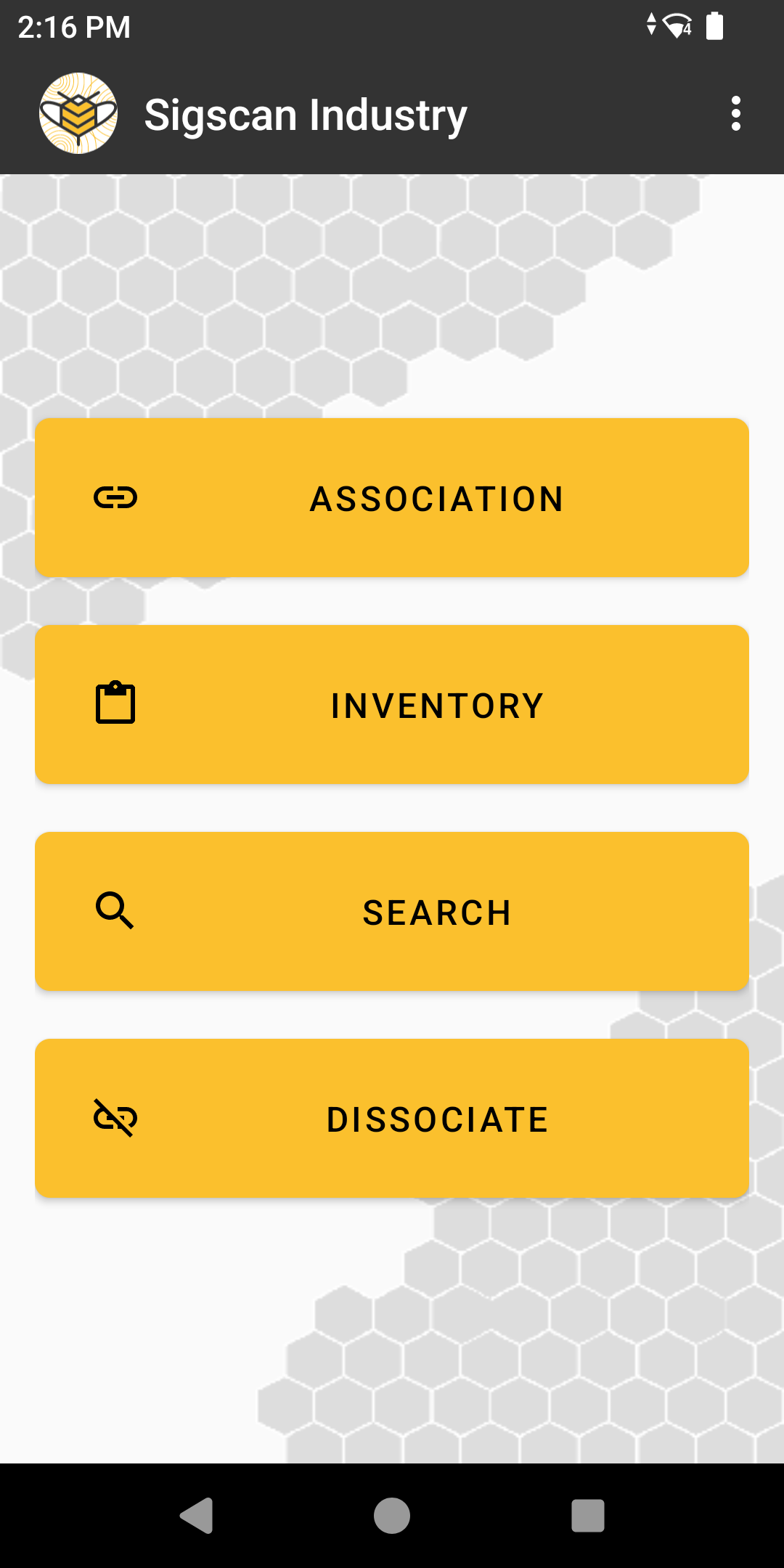
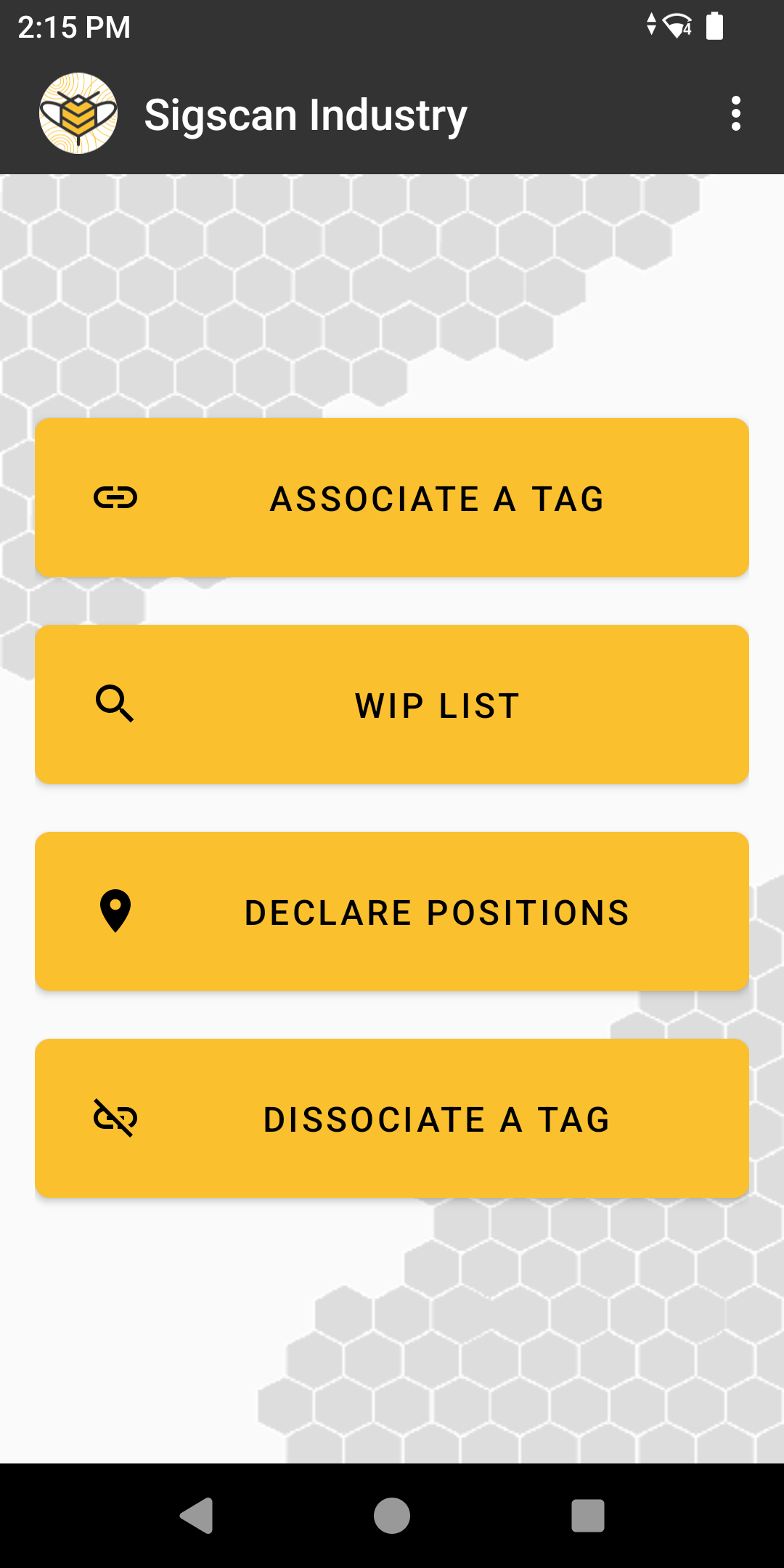
In the Production module, you can perform 4 actions :
Associate a WIP/WO with a tag
Search for and modify a WO
Declare a position to a WO
Dissociate a tag from a WO
For more information : Clic here
You can also change the application's default settings by accessing the setting with the 3 dots at the top right of your screen (More informations).
Don't forget to disconnect after use.
Tools
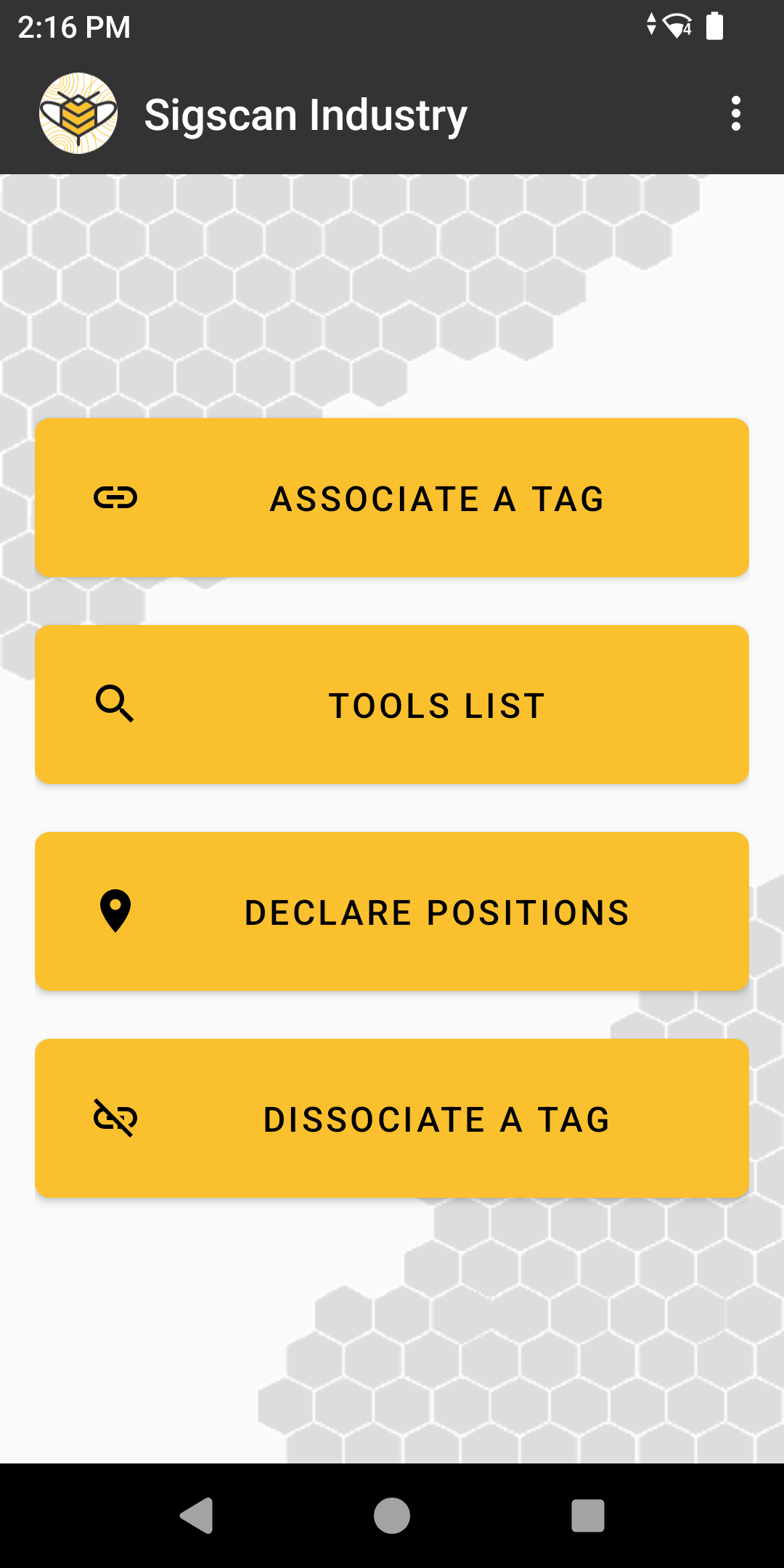
In the Tool module, you can perform 4 actions : :
Associate a tool with a tag
Search for and modify a tool
Declare a position to a tool
Dissociate a tag from a tool
For more information : Clic here
You can also change the application's default settings by accessing the setting with the 3 dots at the top right of your screen (More information).
Don't forget to disconnect after use.
Inventory
In the Inventory module, you can perform 4 actions : :
Associate an item with a tag
Search for and modify an item
Declare a position to an item
Dissociate a tag from aan item
For more information : Clic here
You can also change the application's default settings by accessing the setting with the 3 dots at the top right of your screen (More informations).
Don't forget to disconnect after use.