Automatic mass import of objects into SIGSCAN Industry
If you have a large number of objects to import, you can import an XLSX file listing all your objects.
Bulk manual import
Creating the import file
Warning: If an object has already been created in Sigscan and is in the file you are importing, you will create duplicates. The manual import must only include new objects.
The file must be structured in a very specific way so that it can be read and understood by Sigscan.
It is essential that the first line indicates the various Custom fields.
In the first column, you write the name of the object and in the second the Type. The order of the other configurable fields is not important.

Exemple of import file
Import
Click on  on right bottom of the page.
Once the file has been imported, you select the configurable fields you have previously defined with the corresponding named columns.
The column headings from the file appear on the left. On the right you select the corresponding configurable field.
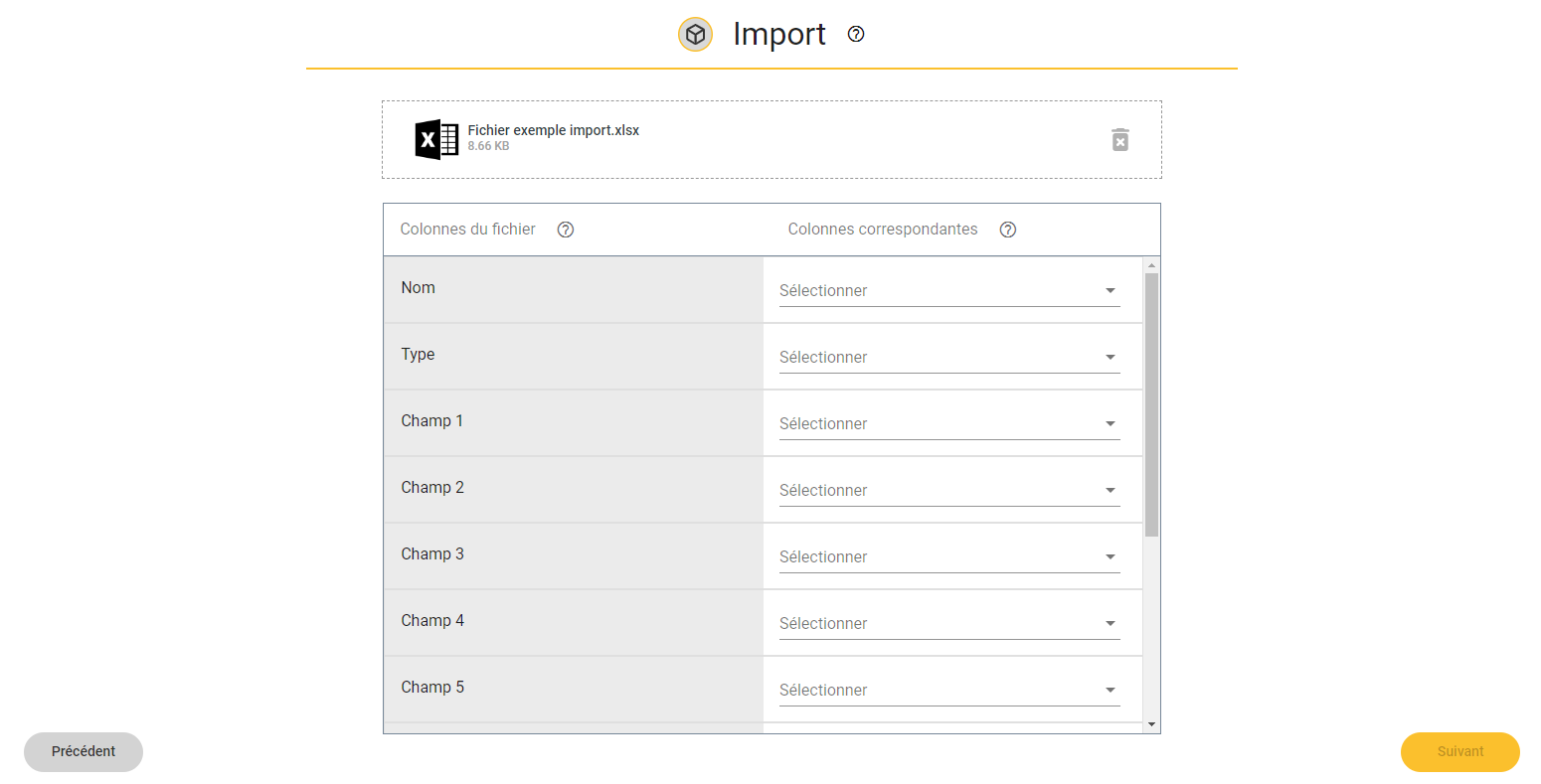
Once all the matches have been made, Sigscan will create all the objects in your file.
Automate import with the connector
The import can be automated using a connector to update the objects created in SIGSCAN on a recurring basis.
Please note: the file updates the configurable fields of objects with the same name and type. If the type or name changes, a duplicate will be created.
To do this, we provide you with access to an FTP server where you can upload a CSV file.
Link : https://votre-nom.sigscan-industry.com
Port: xxx
User: login
Password: Password
This information will be sent to you on request.
The CSV file can be used to create objects with their configurable fields in Sigscan if they do not exist, or to update them if the associated configurable fields change.
Building the CSV file for automated import
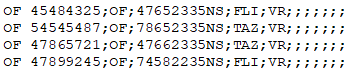
The first two columns are used to uniquely identify the object. The first column must contain the name of the object (e.g. OF 45484325). The second column must contain the object type (e.g. OF).
The following columns should contain the configurable fields in alphabetical order (following the names of the configurable fields in Sigscan).
The CSV file can contain up to 18 configurable fields (20 columns in total). The names of the configurable fields must be determined and created in Sigscan before exporting the CSV file, as they define the order of the columns.
Warning: If a configurable field changes its name, this could potentially lead to a change in the position of the column containing it.
Data must be separated by a semicolon. The file must not contain a header. All lines that are not empty are considered as data to be imported into Sigscan. Values in columns must not have spaces before and after the semicolon.