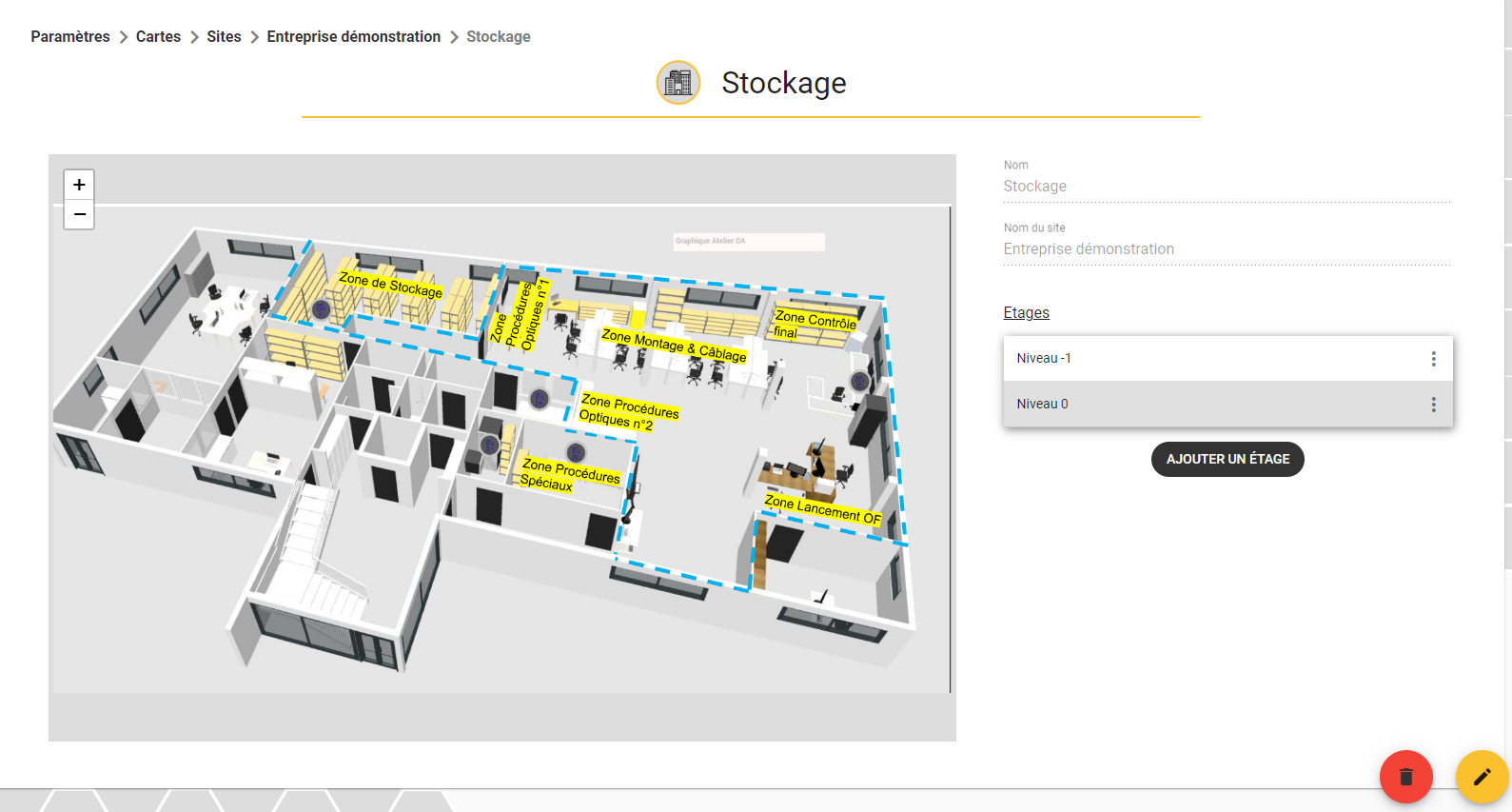
Plans management in SIGSCAN Industry
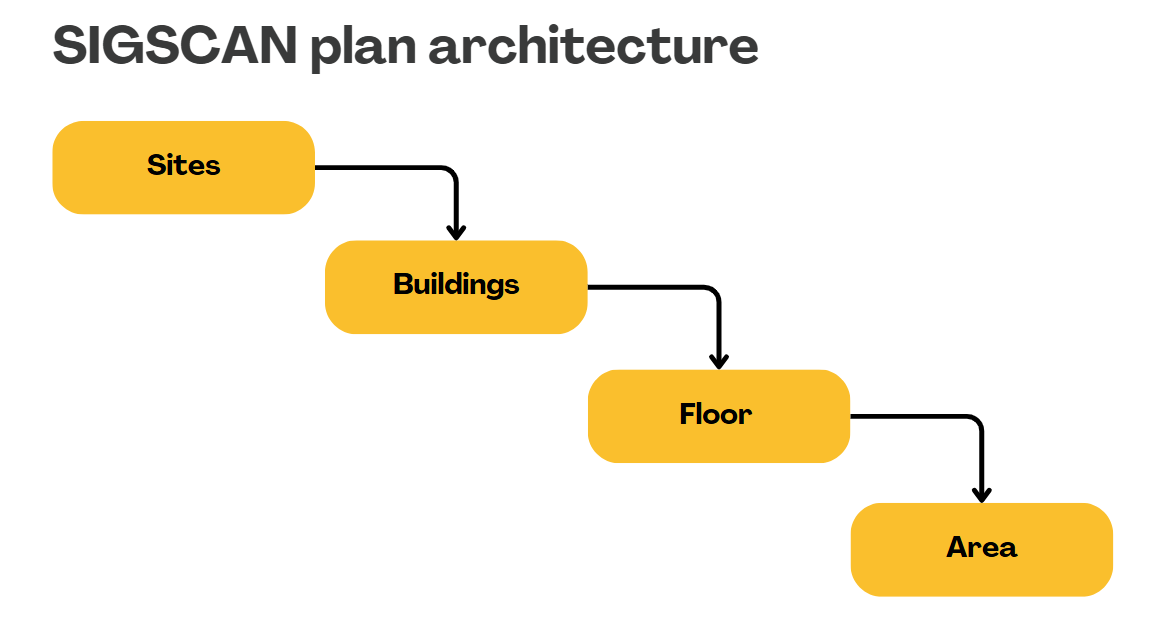
When we configure SIGSCAN, we integrate your plans into your organisation.
Managing sites
General settings > Maps > Sites
Please note that modifying and deleting plans may result in the deletion of positions and position history in SIGSCAN. Contact SIGSCAN support to assess the possible impact before making any changes.
Open the general settings sub-menus , then open the map tab.
Go to the Sites tab and you'll find the sites configured by SIGSCAN.
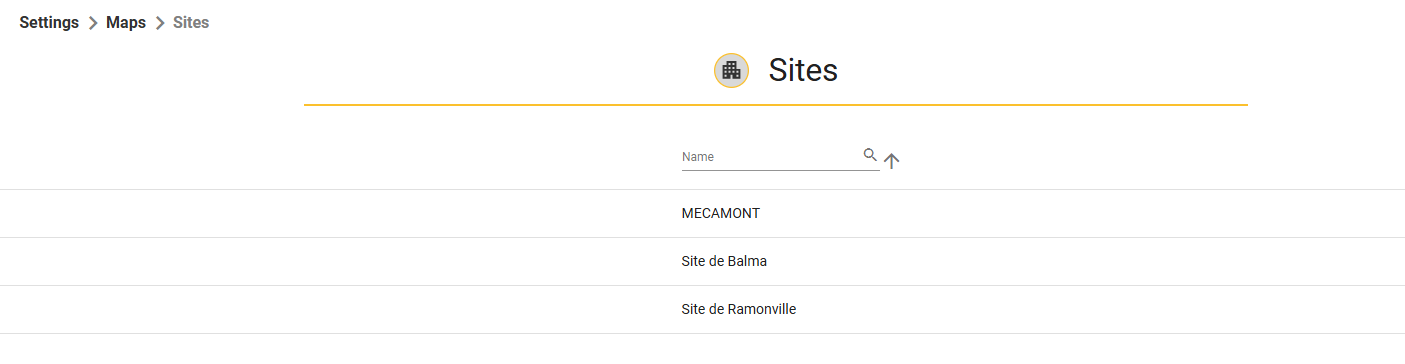
To add a Site, click on the icon 
Enter the name and address of your new site, and add a site map.
Sigscan supports Image formats < 4Mb only.
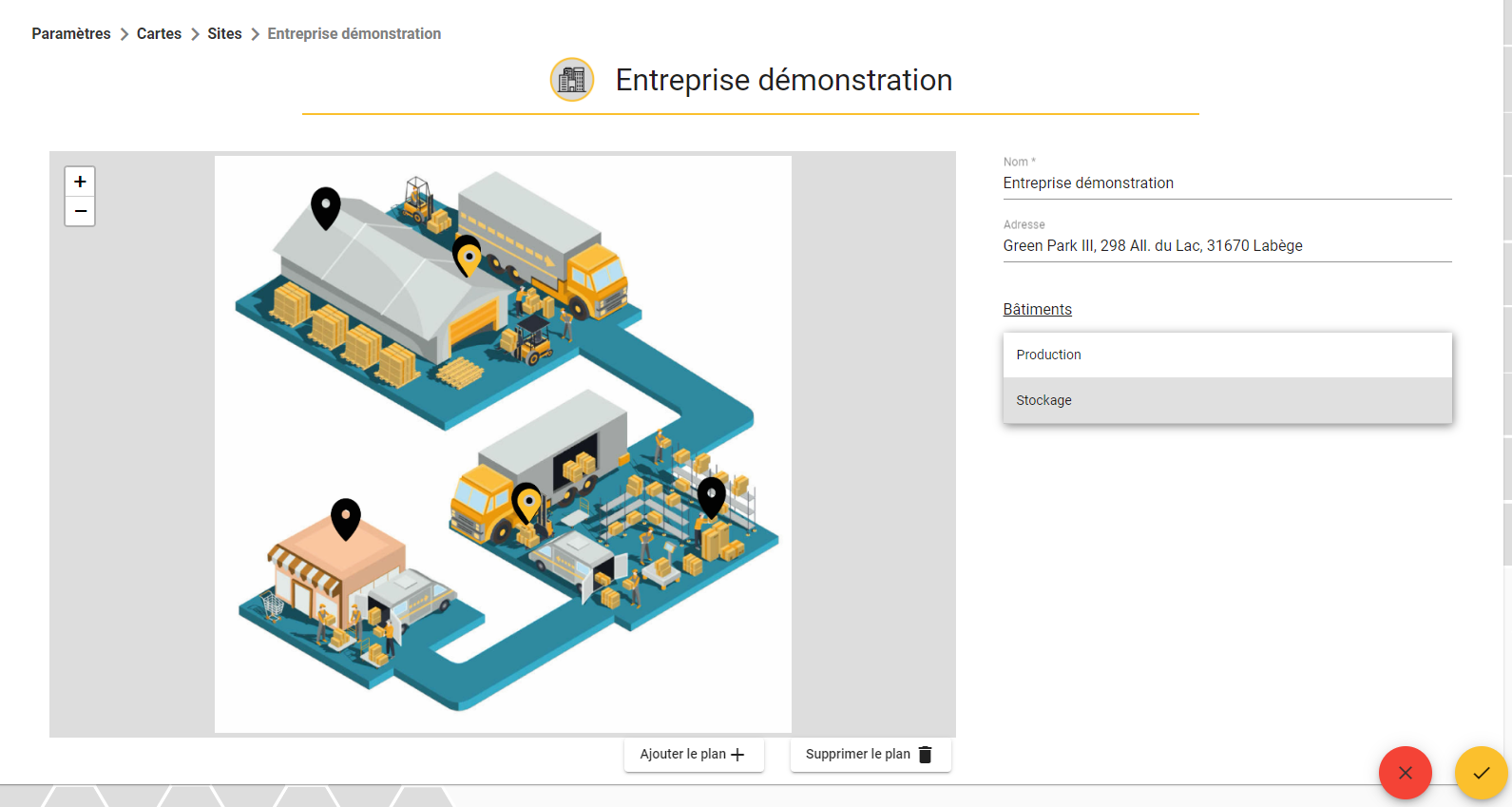
You will then find your new site in the list of sites. You can modify it by clicking on it and then on the icon  you can change the name, address and site map.
Building management
General settings > Maps > Sites
To create a building, go to the Sites tab and click on the desired site.
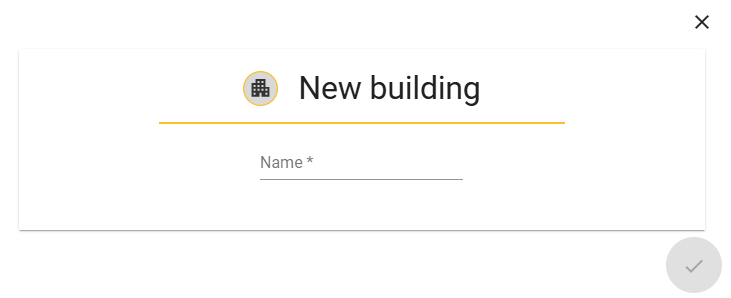
Click on add a building, then enter the name and confirm. Your building has now been created.
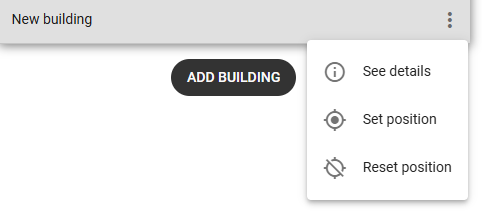
Once created, you need to position it on your site map.
Click on the 3-dot icon to the right of the name of the building you want to position, then on Define your position:
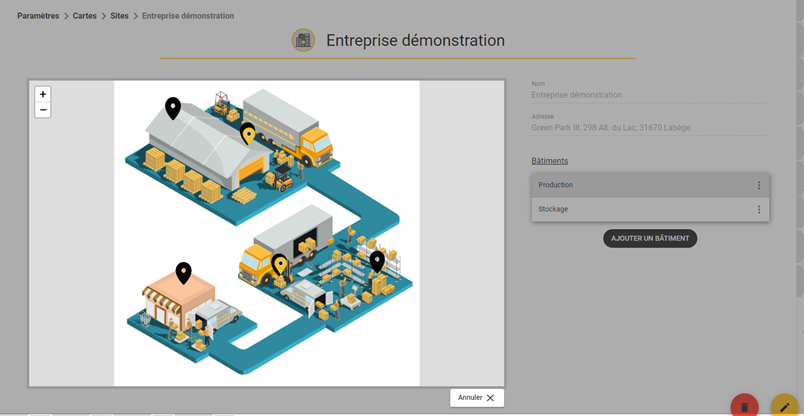
Place the marker on the corresponding building on your general site plan, then confirm:
Floor management
Settings > Maps > Buildings
Go to the Buildings tab, where you'll find the different buildings you've created, and select the building you want.
To create a new floor, click on the  then enter the name.
We recommend that you number the floor and then enter the name of the Building in the name.
Finally, add the floor plan and confirm.